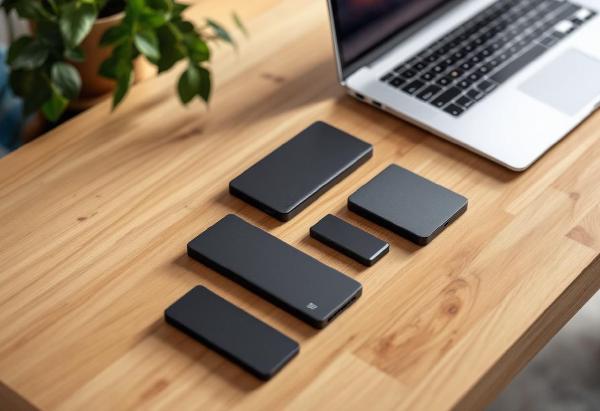
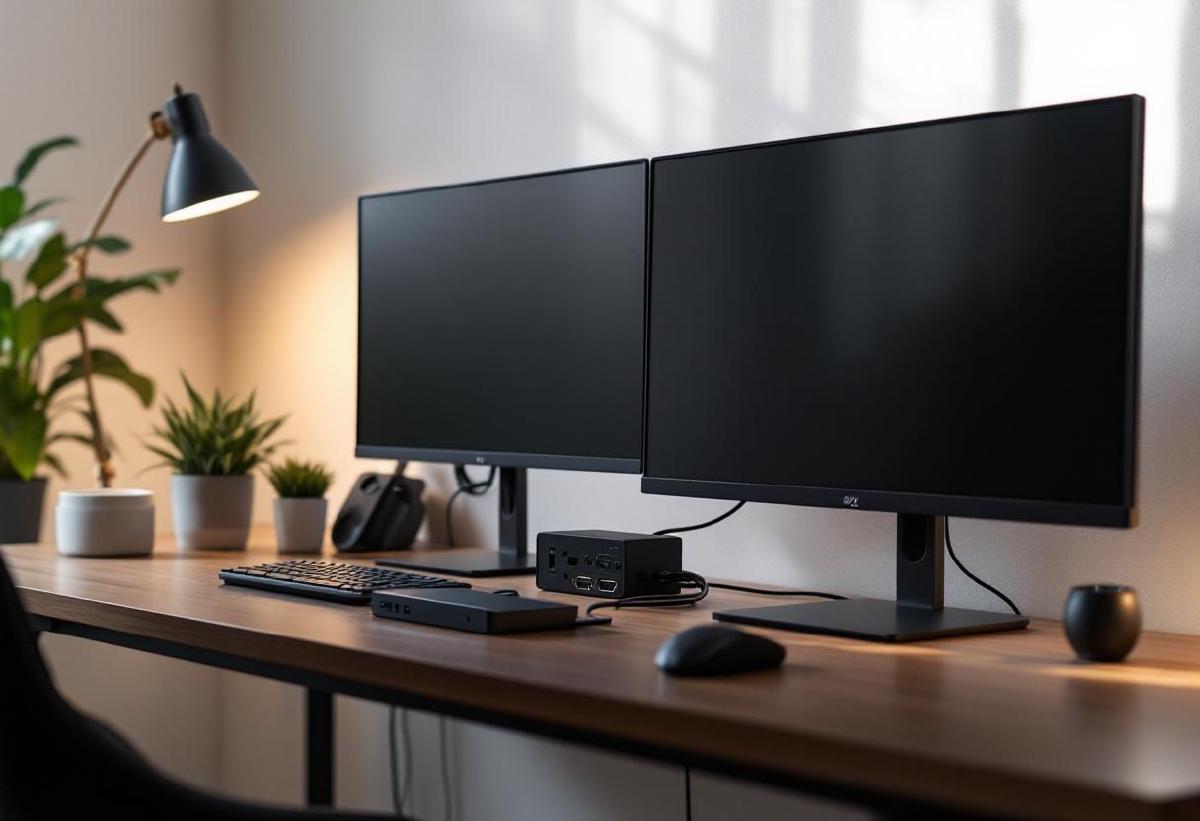
If you work from home with a personal PC and a work laptop — or juggle multiple machines — a KVM (keyboard, video, mouse) switch lets you control everything from a single keyboard, mouse, and monitor. No more swapping cables, no second set of peripherals cluttering your desk. One button press, and you’re on the other machine.
The KVM switch market has improved enormously in the last two years. USB-C models now support 4K@60Hz passthrough, and switching times have dropped to under two seconds. But there’s a wide gap between the cheap HDMI boxes on Amazon and the premium DisplayPort units — and picking the wrong one means flickering screens, laggy peripherals, or resolution caps that make your nice monitor pointless.
We’ve tested and compared six of the best KVM switches for home office setups in 2026. Whether you need USB-C simplicity, 4K@144Hz for a high-refresh monitor, or just a reliable way to share peripherals, here’s what’s worth buying.
Pair your KVM switch with a quality monitor arm and cable management for a clean multi-computer setup.
Quick Comparison #
| KVM Switch | Price | Ports | Max Resolution | Switching | USB Hub | Best For |
|---|---|---|---|---|---|---|
| TESmart HKS0402A2U | $160 / £140 | 4 HDMI 2.0 | 4K@60Hz | Button/hotkey/remote | 4× USB 3.0 | Best overall |
| CKLau 2-Port USB-C | $130 / £110 | 2 USB-C | 4K@60Hz | Button/hotkey | 3× USB 3.0 | Best USB-C |
| UGREEN 2-Port HDMI | $45 / £38 | 2 HDMI 2.0 | 4K@60Hz | Button/hotkey | 4× USB 2.0 | Best budget |
| Level1Techs DP 1.4 | $300 / £260 | 2 DP 1.4 | 4K@144Hz | Button/hotkey | 4× USB 3.0 | Best for high-refresh |
| TESmart HDC0201A1U | $110 / £95 | 2 HDMI+USB-C | 4K@60Hz | Button/hotkey/remote | 4× USB 3.0 | Best hybrid |
| Plugable USB-C KVM | $90 / £75 | 2 USB-C | 4K@60Hz | Button | 3× USB 3.0 | Best compact |
1. TESmart HKS0402A2U — Best KVM Switch Overall #
The TESmart 4-port is the KVM switch we’d recommend to most home office workers. It handles four HDMI 2.0 sources at 4K@60Hz with zero issues, switches between them in about 1.5 seconds, and includes an IR remote alongside the physical button and keyboard hotkeys.
Build quality is solid — it’s a metal chassis that dissipates heat well during all-day use. The four USB 3.0 ports on the front pass through peripherals cleanly, including wireless dongles, webcams, and USB microphones. EDID emulation means your monitors don’t “forget” their resolution settings when you switch away from a computer — a common annoyance with cheap KVM switches that causes windows to rearrange.
Setup is straightforward: HDMI cables in, USB-B upstream cables to each computer, plug your peripherals into the front USB ports. The hotkey switching (Ctrl+Ctrl+1/2/3/4) becomes second nature within a day.
The only real limitation is HDMI 2.0 rather than 2.1 — if you need 4K@120Hz+ you’ll want the Level1Techs DP option. For standard 4K@60Hz office monitors, this is perfect.
Pros:
- 4-port HDMI 2.0 with 4K@60Hz support
- EDID emulation prevents monitor resolution issues
- Fast 1.5-second switching
- IR remote + button + keyboard hotkeys
- 4× USB 3.0 hub ports
- Metal chassis, solid build
- Supports audio extraction
Cons:
- HDMI 2.0 caps at 4K@60Hz (no high-refresh)
- Requires separate HDMI and USB cables per computer
- IR remote feels cheap despite working well
- No USB-C input ports
- Larger form factor than 2-port alternatives
Best for: Home office workers with 2-4 computers who need reliable 4K@60Hz switching. Our top overall pick.
Check price on Amazon US → Check price on Amazon UK →
2. CKLau 2-Port USB-C KVM — Best USB-C KVM Switch #
If both your machines have USB-C output (most modern laptops do), the CKLau USB-C KVM simplifies your setup dramatically. A single USB-C cable per computer carries video, USB data, and even power delivery — meaning your laptop charges while connected. No separate HDMI cable, no USB upstream cable. Just one cable per machine.
The switch handles 4K@60Hz over USB-C Alt Mode without issue. Switching is fast at around 1.8 seconds, and the hotkey support (Scroll Lock + Scroll Lock + 1/2) works reliably. Three USB 3.0 downstream ports handle your peripherals.
The main caveat: both computers need USB-C with DisplayPort Alt Mode. Most laptops from 2022 onwards support this, but check your specs. Desktop PCs often need a USB-C video card or Thunderbolt add-in card. The CKLau also tops out at 65W power delivery, which charges most ultrabooks but may not be enough for power-hungry gaming laptops.
Cable quality matters more with USB-C KVMs than HDMI ones. Use the included cables or high-quality USB-C cables rated for video — cheap charging cables won’t pass a display signal.
Pros:
- Single USB-C cable per computer (video + data + charging)
- 4K@60Hz support via DP Alt Mode
- Up to 65W power delivery
- Clean, minimal cable setup
- 3× USB 3.0 downstream ports
- Hotkey and button switching
Cons:
- Requires USB-C with DP Alt Mode on both computers
- 65W PD may not charge all laptops
- Only 2 ports (no 4-port version)
- Cable quality dependent — must use proper USB-C video cables
- No HDMI fallback — USB-C only
Best for: MacBook or modern laptop users who want the cleanest possible two-computer setup with minimal cabling.
Check price on Amazon US → Check price on Amazon UK →
3. UGREEN 2-Port HDMI KVM — Best Budget KVM Switch #
At around $45, the UGREEN 2-port KVM is the cheapest option that actually works well. It supports 4K@60Hz over HDMI 2.0, switches in about 2 seconds, and includes four USB 2.0 ports for peripherals. The build is plastic rather than metal, but it’s compact and unobtrusive on a desk.
For a basic two-computer setup — say, a work laptop and a personal desktop sharing one monitor, keyboard, and mouse — this does everything you need. The button switching is tactile and satisfying, and keyboard hotkeys (Ctrl+Ctrl+1/2) are quick once memorised.
The USB 2.0 limitation is the main trade-off at this price. Your keyboard and mouse won’t notice the difference, but if you’re sharing a webcam or external drive through the KVM, you’ll hit USB 2.0’s bandwidth ceiling. EDID emulation is basic but functional — we had no resolution issues in testing, though users with ultrawide monitors occasionally report problems.
If you’re buying your first KVM switch or don’t want to invest heavily, this is the one to start with. If you outgrow it, you can always upgrade to the TESmart.
Pros:
- Excellent value at ~$45
- 4K@60Hz HDMI 2.0
- Compact, desk-friendly size
- Button + keyboard hotkey switching
- Plug and play — no drivers needed
- Includes HDMI and USB cables
Cons:
- USB 2.0 only — slow for drives and webcams
- Plastic build (acceptable at this price)
- Only 2 ports
- Basic EDID emulation (may struggle with ultrawides)
- No remote control option
- No audio extraction
Best for: Budget-conscious home workers who need simple two-computer switching without spending $150+. Best value pick.
Check price on Amazon US → Check price on Amazon UK →
4. Level1Techs DisplayPort 1.4 KVM — Best for High-Refresh Monitors #
The Level1Techs DP 1.4 KVM is the enthusiast’s choice. It’s the only KVM switch we tested that reliably passes 4K@144Hz or 1440p@165Hz over DisplayPort 1.4 — making it the only option for people with high-refresh monitors who refuse to compromise on their display quality when switching machines.
This matters more than you’d think. If you have a 4K@144Hz monitor and use a cheaper HDMI 2.0 KVM, you’re capping yourself at 4K@60Hz every time you switch through the KVM. The Level1Techs switch removes that bottleneck entirely.
Build quality is boutique-level — machined metal case, high-quality connectors, and excellent EDID emulation that handles even notoriously picky monitors. The four USB 3.0 ports pass peripherals without lag, and switching takes about 2 seconds.
The price is steep at $300, and availability can be limited since Level1Techs is a small operation (order from their website). But if you’ve invested in a premium monitor, skimping on the KVM switch defeats the purpose. This is the “buy once, cry once” option.
Pros:
- DisplayPort 1.4 supports 4K@144Hz and 1440p@165Hz
- Excellent EDID emulation — works with picky monitors
- Boutique build quality (machined metal)
- 4× USB 3.0 ports
- Reliable switching with hotkey support
- Two-computer support with dual-monitor version available
Cons:
- $300 is expensive — premium pricing
- Limited retail availability (order from Level1Techs directly)
- Only 2 ports
- No USB-C input option
- DP cables not always included
- Overkill if your monitor is 4K@60Hz
Best for: Users with high-refresh 4K or 1440p monitors who want full resolution and refresh rate when switching between machines. The enthusiast pick.
Check price on Amazon US → Check price on Amazon UK →
5. TESmart HDC0201A1U — Best Hybrid KVM Switch #
The TESmart HDC0201A1U solves a common problem: what if one of your computers uses USB-C and the other uses HDMI? This hybrid KVM accepts one HDMI 2.0 input and one USB-C input, switching between them to a single HDMI monitor output. Both inputs support 4K@60Hz.
This is ideal for setups like a desktop tower (HDMI out) paired with a MacBook or work laptop (USB-C out). The USB-C port provides 65W power delivery, so your laptop charges while connected. Four USB 3.0 ports handle peripherals, and switching via button, hotkey, or IR remote is snappy at under 2 seconds.
EDID emulation works well, and the metal chassis matches the build quality of TESmart’s pricier models. At $110, it’s well-positioned between the budget UGREEN and the premium Level1Techs.
The only limitation is the 2-port cap — if you need more than two computers, look at the 4-port TESmart instead. But for the typical “work laptop + personal desktop” combo, this hybrid approach is elegant and saves buying adapters.
Pros:
- Mixed input: 1× HDMI + 1× USB-C
- 65W USB-C power delivery
- 4K@60Hz on both inputs
- 4× USB 3.0 hub ports
- IR remote + button + hotkey switching
- Metal chassis, good build quality
- EDID emulation included
Cons:
- Only 2 ports
- USB-C PD tops out at 65W
- HDMI output only (no DP output)
- Slightly bulkier than pure USB-C KVMs
- No 4K@120Hz+ support
Best for: Home office workers with one HDMI desktop and one USB-C laptop who want seamless switching without adapters. Best hybrid option.
Check price on Amazon US → Check price on Amazon UK →
6. Plugable USB-C KVM Switch — Best Compact Option #
The Plugable USB-C KVM is the smallest switch on this list — about the size of a deck of cards. It handles two USB-C computers, outputs to one monitor at 4K@60Hz, and provides three USB 3.0 downstream ports. If desk space is at an absolute premium or you want something that hides behind a monitor riser, this is it.
Performance is reliable: switching takes about 2 seconds via the single button on top (no hotkey support unfortunately). USB passthrough works cleanly for keyboards, mice, and wireless dongles. The aluminium casing feels premium despite the compact size.
The trade-offs for the small form factor: no hotkey switching, no remote, and only three USB ports. If those matter to you, the CKLau offers more features. But if you want the most discreet KVM possible at a reasonable $90, the Plugable delivers.
Pros:
- Extremely compact — hides easily on any desk
- 4K@60Hz USB-C
- Aluminium build, premium feel
- 3× USB 3.0 downstream
- Simple one-button operation
- Affordable at $90
Cons:
- No keyboard hotkey switching
- No remote control
- Only 3 USB ports (vs 4 on competitors)
- Button-only switching
- No power delivery for laptops
- USB-C only — no HDMI fallback
Best for: Minimalist desk setups where space is tight and you want a KVM that disappears. Best compact option.
Check price on Amazon US → Check price on Amazon UK →
How to Choose the Right KVM Switch #
Check Your Ports First #
Before buying, check what video outputs your computers have:
- Both USB-C: Go with the CKLau or Plugable USB-C KVM
- Both HDMI: TESmart or UGREEN HDMI models
- One HDMI, one USB-C: TESmart hybrid
- Both DisplayPort: Level1Techs DP 1.4
Resolution and Refresh Rate #
All switches on this list support 4K@60Hz. If your monitor runs at higher refresh rates (144Hz+), only the Level1Techs DP 1.4 will pass through the full refresh rate. For standard office monitors at 60Hz, any switch works.
USB Ports Matter #
Think about what peripherals you’re sharing. A keyboard and mouse only need USB 2.0. But if you’re also sharing a webcam, USB microphone, or external drive, you’ll want USB 3.0 ports on the KVM.
EDID Emulation #
When you switch away from a computer, a cheap KVM tells that computer “the monitor disconnected.” This makes Windows rearrange all your windows to a default layout. EDID emulation prevents this by telling each computer the monitor is always connected. Every switch on this list has EDID emulation, but some handle it better than others — the TESmart and Level1Techs are the most reliable.
KVM Switch vs Software Solutions #
You might wonder whether software like Synergy, Barrier, or Mouse Without Borders can replace a hardware KVM. These tools share a keyboard and mouse across computers over your network, but they don’t share the monitor. You still need multiple screens or manual cable switching.
A KVM switch shares everything — keyboard, mouse, and display — through a single button press. For a true single-monitor, multi-computer setup, hardware KVM is the way to go.
If you already have multiple monitors and just want to share peripherals, software solutions are worth considering. But for the cleanest desk with one monitor, one keyboard, and one mouse, a KVM switch is the answer.
Frequently Asked Questions #
Do KVM switches add input lag? #
Modern KVM switches add negligible input lag — typically under 1ms for USB peripherals. You won’t notice any difference in keyboard or mouse responsiveness. Video passthrough is also lag-free since the switch just routes the signal, it doesn’t process it.
Can I use a KVM switch with two monitors? #
Yes, but you need a dual-monitor KVM switch (they route two video signals simultaneously). The Level1Techs offers a dual-monitor version. Alternatively, you can buy two single-monitor KVM switches and sync them, though this is fiddly.
Do KVM switches work with Mac? #
All switches on this list work with macOS. USB-C KVMs are particularly good for Macs since MacBooks and Mac Minis all have USB-C/Thunderbolt ports. Keyboard hotkey switching uses standard key combos that macOS recognises.
Will my monitor settings reset when I switch? #
Not if the KVM has EDID emulation (all our picks do). Without EDID, your computer thinks the monitor disconnected, and Windows will rearrange your windows. With EDID, each computer always sees the monitor as connected.
Can I share a USB docking station through a KVM? #
It’s not recommended. USB-C docks handle their own USB switching and video output — daisy-chaining them through a KVM often causes compatibility issues. Connect each computer directly to the KVM instead.
How many computers can a KVM switch support? #
Most home office KVMs support 2 or 4 computers. Enterprise models go up to 8 or 16, but those are overkill (and expensive) for home use. If you have more than 4 machines, consider whether you actually need to share peripherals with all of them.
Building a complete multi-computer home office? Start with a solid standing desk and ergonomic chair, add a great monitor with a monitor arm, and keep everything tidy with proper cable management.