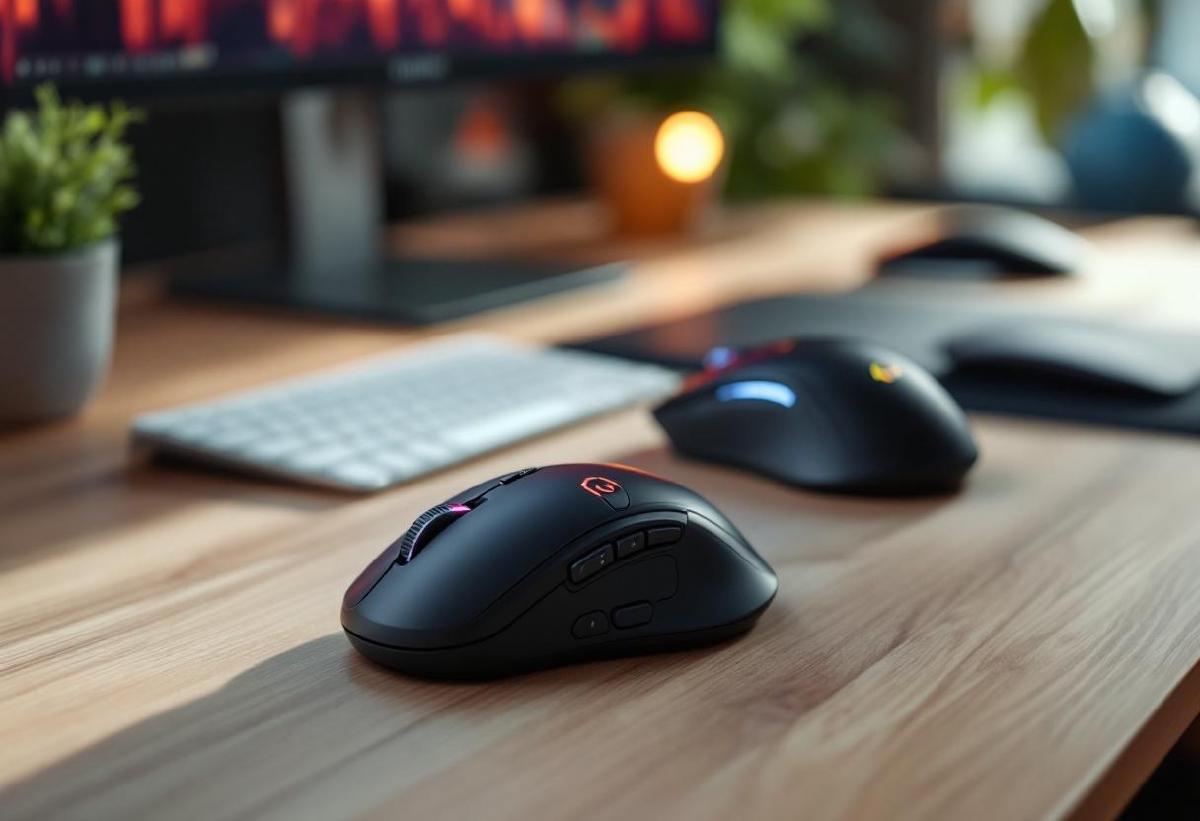
In today’s fast-paced digital workplace, every second counts. While a standard mouse might get the job done, a true productivity mouse can dramatically enhance your workflow efficiency through programmable buttons, advanced sensors, gesture controls, and intelligent features designed specifically for professional use.
After extensive testing with various productivity-focused mice across different professional scenarios, we’ve identified the top options that can genuinely transform how you work. These aren’t just fancy mice—they’re productivity tools that can save hours of work each week through smart automation and optimized workflows.
What Makes a Mouse “Productivity-Focused”? #
A productivity mouse goes beyond basic pointing and clicking. Here’s what separates these professional tools from standard mice:
Programmable Buttons: Multiple customizable buttons that can execute complex commands, macros, or application-specific actions with a single click.
Advanced Sensors: High-precision sensors that work flawlessly on any surface, eliminating the frustration of cursor jumping or imprecision during detailed work.
Multi-Device Connectivity: Seamless switching between multiple computers, tablets, or devices without reconnecting.
Application-Specific Profiles: Automatic profile switching that changes button functions based on which software you’re using.
Ergonomic Design: Comfortable shapes that reduce strain during extended use, often with adjustable features.
Workflow Integration: Software that integrates with productivity apps to create streamlined workflows.
Our Top 7 Productivity Mice for Professional Use #
1. Logitech MX Master 3S - Best Overall Productivity Mouse #
Price: $99-109
The MX Master 3S is widely regarded as the gold standard for productivity mice. Its combination of advanced features, premium build quality, and intuitive software makes it the top choice for professionals across all industries.
Key Productivity Features:
- 7 programmable buttons including side scroll wheel
- MagSpeed electromagnetic scrolling (1000 lines per second)
- Multi-device connectivity (up to 3 devices)
- 8000 DPI sensor with tracking on any surface
- Application-specific customization profiles
- Gesture button for custom actions
The standout feature is the side scroll wheel, perfect for horizontal scrolling in spreadsheets or timelines. The electromagnetic scroll wheel is virtually silent and incredibly precise, making document navigation effortless.
Best For: Professionals who work across multiple applications and devices, especially those in design, finance, or content creation.
Amazon Links:
2. Razer Pro Click - Best for Software Development #
Price: $79-99
While Razer is known for gaming, the Pro Click is purpose-built for professional productivity. Its focus on programming and development workflows makes it ideal for software professionals.
Key Productivity Features:
- 8 programmable buttons optimized for productivity
- 16000 DPI sensor with on-the-fly sensitivity switching
- Multi-device Bluetooth connectivity
- 90-hour battery life
- Dedicated DPI cycling button
- Premium tactile scroll wheel
The Pro Click’s button layout is optimized for common development tasks like copy/paste, undo/redo, and application switching. The high DPI sensor is perfect for multi-monitor setups common in development environments.
Best For: Software developers, programmers, and IT professionals who need precision and workflow optimization.
Amazon Links:
3. Microsoft Surface Precision Mouse - Best for Microsoft Ecosystem #
Price: $89-99
If your workflow revolves around Microsoft applications, the Surface Precision Mouse offers the deepest integration with Windows and Office productivity features.
Key Productivity Features:
- 3 customizable buttons with Microsoft-optimized defaults
- Scroll wheel with both smooth and notched modes
- Bluetooth Low Energy with long battery life
- Optimized for Windows 10/11 gestures
- Seamless integration with Microsoft 365
- Premium metal scroll wheel
The mouse automatically switches scroll modes based on application needs—smooth for web browsing and document scrolling, notched for precision selection in spreadsheets and presentations.
Best For: Professionals heavily invested in the Microsoft ecosystem who prioritize seamless Office integration.
Amazon Links:
4. Apple Magic Mouse 3 - Best for Mac Workflows #
Price: $79-89
For Mac users, the Magic Mouse 3 provides unparalleled integration with macOS features and gestures, making it the natural choice for Apple-centric workflows.
Key Productivity Features:
- Multi-touch surface for native macOS gestures
- Lightning fast USB-C charging
- Seamless Bluetooth pairing and switching
- Force Touch capabilities
- Mission Control and Exposé integration
- Smart zoom and scrolling
The multi-touch surface enables natural gestures like swiping between full-screen apps, smart zoom, and smooth scrolling that integrates perfectly with macOS animations and features.
Best For: Mac users who want the most seamless integration with macOS features and gesture-based workflows.
Amazon Links:
5. Logitech MX Anywhere 3 - Best Portable Productivity Mouse #
Price: $69-79
For professionals who need productivity features on the go, the MX Anywhere 3 packs impressive functionality into a compact, travel-friendly design.
Key Productivity Features:
- Compact design perfect for travel
- Works on any surface including glass
- MagSpeed scroll wheel
- Multi-device connectivity (up to 3 devices)
- 70-day battery life
- USB-C fast charging
Despite its small size, the MX Anywhere 3 doesn’t compromise on features. The ability to work on any surface, including glass conference tables, makes it invaluable for mobile professionals.
Best For: Business travelers, remote workers, and professionals who need full productivity features in a portable package.
Amazon Links:
6. Corsair M65 RGB Elite - Best for Creative Professionals #
Price: $59-79
Originally designed for gaming, the M65 RGB Elite’s precision and customization options make it excellent for creative work requiring pixel-perfect accuracy.
Key Productivity Features:
- 18000 DPI sensor with precise tracking
- Adjustable weight system for perfect balance
- 8 programmable buttons
- Dedicated sniper button for precision work
- iCUE software for advanced customization
- Durable aluminum frame
The adjustable weight system and sniper button (which temporarily reduces DPI) make this mouse exceptional for detailed creative work like photo editing, CAD design, or digital illustration.
Best For: Creative professionals who need precision for detailed work and appreciate extensive customization options.
Amazon Links:
7. SteelSeries Rival 3 Wireless - Best Budget Productivity Option #
Price: $39-49
Proving that productivity features don’t have to break the bank, the Rival 3 Wireless offers impressive functionality at an accessible price point.
Key Productivity Features:
- TrueMove Air sensor (18000 CPI)
- 6 programmable buttons
- 400+ hour battery life
- Fast 2.4GHz wireless connectivity
- SteelSeries Engine customization software
- Ambidextrous design
The exceptional battery life means you’ll rarely think about charging, and the TrueMove Air sensor provides gaming-grade precision for professional tasks.
Best For: Budget-conscious professionals who don’t want to sacrifice essential productivity features.
Amazon Links:
Comparison Table: Productivity Features at a Glance #
| Mouse | Price | Buttons | Multi-Device | Battery Life | Special Features |
|---|---|---|---|---|---|
| Logitech MX Master 3S | $99-109 | 7 | 3 devices | 70 days | Side scroll wheel, MagSpeed |
| Razer Pro Click | $79-99 | 8 | 2 devices | 90 hours | Dev-optimized, 16K DPI |
| Microsoft Surface Precision | $89-99 | 3 | No | 3 months | Microsoft integration |
| Apple Magic Mouse 3 | $79-89 | Gestures | No | 1 month | Multi-touch surface |
| Logitech MX Anywhere 3 | $69-79 | 6 | 3 devices | 70 days | Works on glass, compact |
| Corsair M65 RGB Elite | $59-79 | 8 | No | Wired | Adjustable weight, sniper button |
| SteelSeries Rival 3 Wireless | $39-49 | 6 | No | 400 hours | Budget-friendly, long battery |
Optimizing Your Productivity Mouse Setup #
Button Configuration Strategies #
Universal Shortcuts: Program commonly used shortcuts across all applications (copy, paste, undo, save).
Application-Specific Profiles: Create custom button layouts for different software:
- Browsers: Forward/back navigation, new tab, close tab
- Office Apps: Bold, italic, bullet points, zoom controls
- Creative Software: Brush size, layer controls, tool switching
- Development: Code completion, debugging controls, git commands
Multi-Device Workflow Optimization #
Device Switching: Use multi-device mice to seamlessly switch between:
- Main workstation and laptop
- Personal and work devices
- Desktop computer and tablet for presentations
Cross-Platform Consistency: Maintain similar button configurations across all connected devices for muscle memory efficiency.
Sensor and Tracking Optimization #
DPI Settings: Adjust sensitivity based on tasks:
- High DPI (1600-3200): Multi-monitor setups, large screens
- Medium DPI (800-1600): General office work, web browsing
- Low DPI (400-800): Precision work, detailed editing
Surface Considerations: Ensure your mouse works well with your desk surface. Some productivity mice work on any surface, while others perform best with specific mouse pads.
Integration with Your Productivity Ecosystem #
Software Compatibility #
Modern productivity mice come with sophisticated software that integrates with popular productivity applications:
Logitech Options+: Deep integration with Adobe Creative Suite, Microsoft Office, and popular browsers.
Razer Synapse 3: Extensive macro creation and application-specific profiles.
Microsoft Mouse and Keyboard Center: Seamless Windows and Office integration.
Consider how the mouse software fits into your existing productivity toolkit and workflow management systems.
Hardware Synergy #
Your productivity mouse should complement your other office equipment:
Keyboard Integration: Coordinate with your keyboard setup for optimal hand positioning.
Monitor Placement: Ensure comfortable reach with your monitor configuration.
Desk Setup: Factor in your desk organization for optimal mouse placement.
Common Productivity Mouse Workflows #
Content Creation Workflow #
- Button 1: Copy selection
- Button 2: Paste content
- Button 3: Undo last action
- Scroll Click: New tab/window
- Side Scroll: Navigate between artboards/pages
Data Analysis Workflow #
- Button 1: Insert new row/column
- Button 2: Format cells
- Button 3: Create chart from selection
- Side Scroll: Navigate between worksheets
- Gesture: Zoom to fit data
Development Workflow #
- Button 1: Run/compile code
- Button 2: Debug breakpoint
- Button 3: Code completion
- Button 4: Git commit
- DPI Switch: Precision selection in code
Ergonomics and Health Considerations #
Preventing Repetitive Strain #
Proper Grip: Choose a mouse size that fits your hand naturally. Your fingers should rest comfortably on the buttons without stretching.
Wrist Position: Keep your wrist in a neutral position. Consider a mouse pad with wrist support if needed.
Movement Patterns: Use programmable buttons to reduce repetitive clicking and menu navigation.
Multi-Hour Use Optimization #
Button Placement: Ensure frequently used buttons are easily accessible without awkward finger stretching.
Weight Balance: Some mice offer adjustable weight systems—find the balance that reduces fatigue during extended use.
Surface Sensitivity: Choose mice that track well on your preferred surface to minimize adjustment and repositioning.
Advanced Productivity Features to Consider #
Gesture Controls #
Modern productivity mice increasingly support gesture controls:
- Thumb gestures: Navigate between applications or browser tabs
- Scroll gestures: Zoom, rotate, or navigate timelines
- Multi-directional scrolling: Horizontal and vertical navigation in large documents
Smart Automation #
Some productivity mice offer intelligent features:
- Auto-switching profiles: Automatically adjust settings based on the active application
- Smart scrolling: Context-aware scrolling that adapts to content type
- Flow technology: Move seamlessly between multiple computers with file transfer capability
Battery and Connectivity Intelligence #
Advanced power management and connectivity features:
- Fast charging: Quick charge capabilities for minimal downtime
- Battery optimization: Intelligent power saving that extends battery life without sacrificing performance
- Connection priority: Smart switching between wireless connections for optimal performance
Troubleshooting Common Productivity Mouse Issues #
Connectivity Problems #
Multi-device switching delays: Update mouse firmware and ensure devices are within optimal range. Bluetooth interference: Switch to 2.4GHz dongle connection if available for more stable performance.
Button Programming Issues #
Macros not working: Verify application permissions and ensure the mouse software is running with proper privileges. Profile switching problems: Check application detection settings and consider manual profile switching as a backup.
Performance Optimization #
Cursor jumping: Clean sensor area and ensure appropriate DPI settings for your surface and screen resolution. Battery drain: Review active features and adjust polling rate if necessary for better battery life.
Frequently Asked Questions #
Do I really need a productivity mouse if I already have a good regular mouse? #
The difference is significant for professionals who spend hours daily on computer tasks. Programmable buttons alone can save dozens of menu clicks and keyboard shortcuts per hour, while features like multi-device connectivity eliminate device switching friction.
How many programmable buttons do I actually need? #
Most professionals find 4-6 programmable buttons optimal. Too few limits workflow optimization, while too many can be overwhelming. Start with basic functions (copy, paste, undo) and add more complex macros as you become comfortable.
Are wireless productivity mice reliable enough for professional use? #
Modern wireless productivity mice are extremely reliable, often matching or exceeding wired performance. Look for 2.4GHz wireless dongles rather than Bluetooth-only options for the most stable connection.
Can productivity mice help with repetitive strain injuries? #
Yes, by reducing repetitive motions through programmable buttons and gestures. However, proper ergonomics (mouse size, grip, wrist position) are equally important. Consider an ergonomic mouse if strain is already an issue.
How do I know which productivity mouse is right for my workflow? #
Consider your most time-consuming tasks and the applications you use most frequently. Content creators benefit from precision and creative-focused features, while data analysts need excellent spreadsheet navigation. Software developers should prioritize programmable buttons for common coding tasks.
Do productivity mice work well for gaming? #
Many productivity mice use gaming-grade sensors and can perform well for casual gaming. However, they’re optimized for office tasks rather than gaming, so dedicated gaming features may be limited.
How long do productivity mice typically last? #
Quality productivity mice typically last 3-5 years with heavy daily use. The main wear points are usually button switches and battery capacity, both of which degrade gradually over time.
Conclusion: Investing in Your Daily Productivity #
The right productivity mouse is an investment that pays dividends daily through improved efficiency, reduced fatigue, and streamlined workflows. For most professionals, we recommend the Logitech MX Master 3S as the best overall choice, offering the perfect balance of features, reliability, and ergonomics.
Specialized users should consider the Razer Pro Click for development work, the Microsoft Surface Precision Mouse for Microsoft-centric workflows, or the Apple Magic Mouse 3 for seamless Mac integration.
Budget-conscious professionals can achieve significant productivity gains with the SteelSeries Rival 3 Wireless, proving that advanced features don’t require premium pricing.
Remember that the most expensive mouse isn’t necessarily the best for your specific needs. Consider your primary applications, workflow patterns, and ergonomic requirements when making your choice. A well-chosen productivity mouse becomes an extension of your digital capabilities, making complex tasks feel effortless and turning repetitive actions into single-click operations.
Whether you’re managing spreadsheets, creating content, developing software, or coordinating multiple projects, the right productivity mouse can genuinely transform how efficiently you work. The time saved on daily tasks quickly justifies the investment, while the improved comfort and reduced strain benefits your long-term health and productivity.