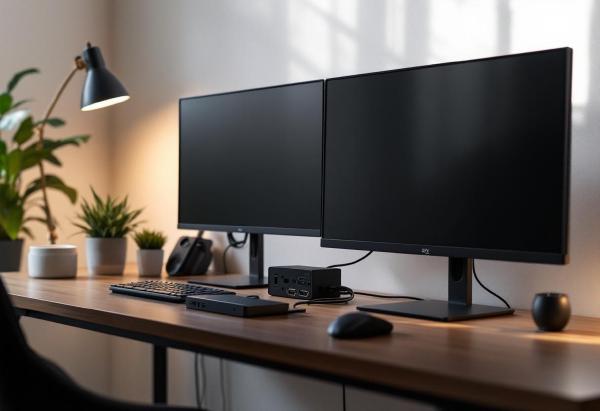
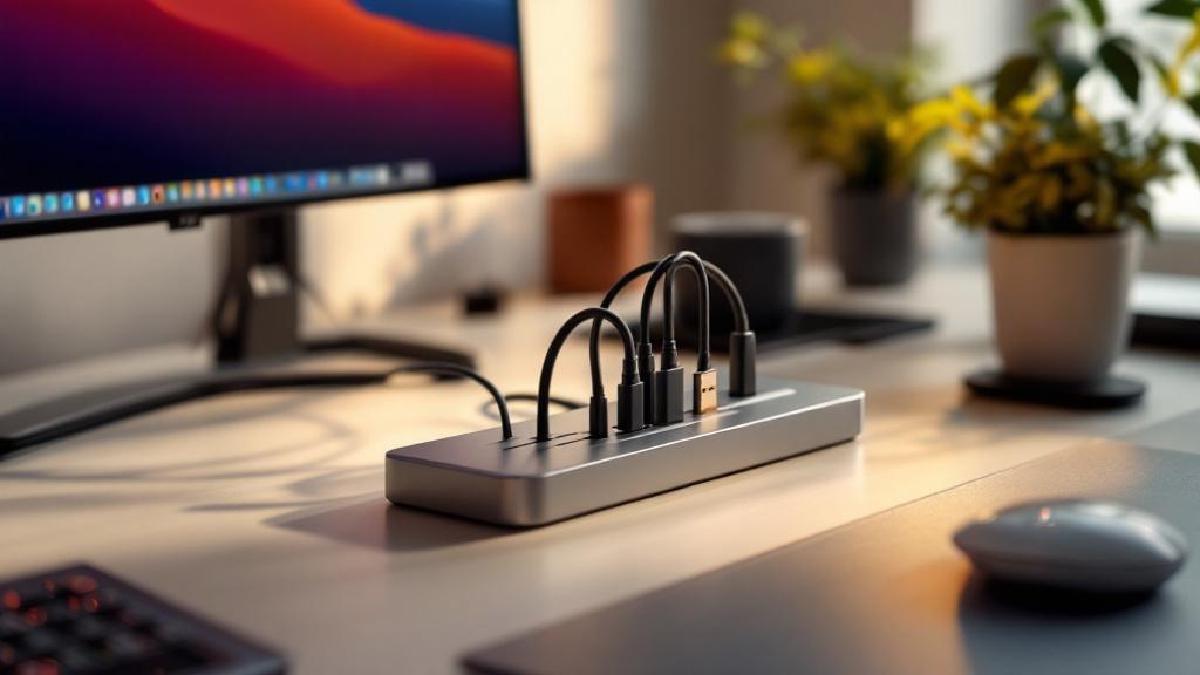
Your laptop is powerful, but it’s trapped by its limited ports. A quality USB-C docking station transforms your portable computer into a desktop powerhouse, connecting multiple monitors, peripherals, and power through a single cable. The result? True one-cable convenience where you can disconnect and go mobile in seconds.
The best USB-C docking stations provide reliable connectivity, sufficient power delivery, and future-proof port selection. We’ve tested seven top docking stations in 2026, covering everything from premium Thunderbolt 4 hubs to budget-friendly USB-C options.
Pair your dock with our recommended monitors and ergonomic accessories for the ultimate laptop-based workstation.
Quick Comparison #
| Docking Station | Price | Protocol | Power Delivery | Display Support | Port Count | Best For |
|---|---|---|---|---|---|---|
| CalDigit TS4 | $400 / £350 | Thunderbolt 4 | 98W | Dual 6K or Triple 4K | 18 ports | Mac Pro users |
| Anker 675 USB-C | $250 / £220 | USB-C | 100W | Dual 4K@60Hz | 12 ports | Desk integration |
| Plugable TBT4 | $300 / £270 | Thunderbolt 4 | 96W | Dual 4K@60Hz | 11 ports | Windows & Mac |
| Dell WD22TB4 | $350 / £310 | Thunderbolt 4 | 130W | Triple 4K@60Hz | 11 ports | Dell laptops |
| Kensington SD5700T | $280 / £250 | Thunderbolt 4 | 90W | Dual 4K@60Hz | 11 ports | Enterprise use |
| Baseus 17-in-1 | $150 / £130 | USB-C | 85W | Dual 4K@30Hz | 17 ports | Budget choice |
| HyperDrive 6-in-1 | $80 / £70 | USB-C | 60W | Single 4K@60Hz | 6 ports | Travel use |
1. CalDigit TS4 — Best Premium Thunderbolt 4 Dock #
The CalDigit TS4 represents the pinnacle of docking station technology with Thunderbolt 4 connectivity and an unmatched 18 ports. For power users who demand the absolute best connectivity, this is the dock that does everything.
The standout feature is its incredible port selection: four Thunderbolt 4 ports, five USB-A 3.2 ports, USB-A 2.0, SD and microSD slots, 2.5GbE ethernet, 3.5mm audio in/out, and optical audio. This means you can connect virtually any device without adapters or port conflicts.
Display support is exceptional with dual 6K displays or triple 4K displays at 60Hz. This makes it perfect for creative professionals who need massive screen real estate or financial users who benefit from multi-monitor setups.
The 98W power delivery charges even power-hungry laptops like the 16-inch MacBook Pro, though the most demanding gaming laptops may need their dedicated chargers. The aluminum construction dissipates heat effectively and matches Apple’s design language perfectly.
CalDigit’s reputation for reliability is well-earned — their docks are popular in professional studios and offices where downtime isn’t acceptable. The three-year warranty reflects their confidence in build quality.
Buy on Amazon US | Buy on Amazon UK
Pros:
- Unmatched 18-port selection including legacy ports
- Dual 6K or triple 4K display support
- Excellent build quality with 3-year warranty
- 2.5GbE ethernet for high-speed networking
- Perfect match for Apple devices
Cons:
- Expensive compared to basic USB-C docks
- Large footprint requires significant desk space
- Requires Thunderbolt 4 port (not all laptops compatible)
- Can get warm under heavy load
2. Anker 675 USB-C Docking Station — Best Desk Integration #
The Anker 675 takes a unique approach by integrating the docking station into the monitor stand, saving valuable desk space while providing excellent connectivity. The 12-in-1 design covers all essential ports while elevating your monitor to the proper ergonomic height.
The wireless charging pad on top accommodates any Qi-enabled phone or earbuds, eliminating cable clutter for your mobile devices. The 100W power delivery charges all but the most power-hungry laptops, and the intelligent power management protects your devices from overcharging.
Display support includes dual 4K@60Hz monitors plus HDMI for a third display, though the third display is limited to 30Hz refresh rate. For most office work and even light content creation, this is more than sufficient screen real estate.
Build quality exceeds expectations with a sturdy aluminum construction that doesn’t flex under the weight of large monitors. The integrated design means fewer cables and a cleaner desk appearance compared to traditional separate docks.
The USB-C 3.0 connectivity works with any laptop that supports DisplayPort over USB-C, making it compatible with both Windows and Mac laptops without requiring Thunderbolt.
Buy on Amazon US | Buy on Amazon UK
Pros:
- Space-saving design that doubles as monitor stand
- Wireless charging pad eliminates cable clutter
- Works with any USB-C laptop (not Thunderbolt-only)
- Dual 4K@60Hz support plus third display
- Clean, integrated aesthetic
Cons:
- Monitor stand height not adjustable
- Third display limited to 30Hz
- Limited to 12 ports compared to premium options
- Wireless charging pad may interfere with some phone cases
3. Plugable Thunderbolt 4 and USB4 Dock — Best Windows & Mac Compatibility #
Plugable’s TBT4 dock focuses on universal compatibility, working flawlessly with both Windows and Mac laptops that support Thunderbolt 4 or USB4. The 11-port design covers essential connectivity without unnecessary complexity.
The dual HDMI 2.1 ports support 4K@60Hz displays with full HDR support, making this excellent for content creators who need accurate color representation. The ports can also drive a single 8K display for future-proofing.
Power delivery at 96W handles virtually any laptop, including power-hungry gaming machines and workstation-class computers. The inclusion of a 280W power adapter means the dock itself doesn’t compromise charging speeds.
Four USB 3.2 ports (three Type-A, one Type-C) provide plenty of connectivity for peripherals, storage devices, and legacy accessories. The front-facing USB-C port supports fast charging for phones and tablets.
Plugable includes a two-year warranty and excellent customer support, with detailed compatibility guides for specific laptop models. Their driver support covers edge cases that can cause issues with lesser-known dock manufacturers.
Buy on Amazon US | Buy on Amazon UK
Pros:
- Excellent compatibility with Windows and Mac
- Dual 4K@60Hz or single 8K display support
- 96W power delivery charges any laptop
- Strong customer support and warranty
- HDMI 2.1 with full HDR support
Cons:
- Fewer ports than premium options like CalDigit TS4
- No SD card slots (disappointing for photographers)
- Vertical orientation takes up desk space
- More expensive than USB-C alternatives
4. Dell WD22TB4 — Best for Dell Laptop Users #
Dell’s WD22TB4 is specifically optimized for Dell laptops but works excellently with any Thunderbolt 4 device. The 130W power delivery is the highest in this roundup, making it perfect for Dell’s most demanding laptops and workstations.
The triple display support (dual 4K@60Hz plus laptop screen) provides massive screen real estate for power users. The displays can be any combination of DisplayPort, HDMI, and USB-C, offering flexibility for different monitor types.
Build quality reflects Dell’s enterprise focus with robust construction and reliable performance. The dock is designed for 24/7 operation in demanding office environments where stability matters more than aesthetics.
The port selection includes everything needed for office productivity: four USB-A 3.2 ports, two USB-C ports, Gigabit Ethernet, audio, and security features like Kensington lock support. The front-facing ports provide easy access for temporary connections.
Dell ExpressCharge technology intelligently manages power delivery to ensure your laptop charges as quickly as possible while maintaining dock functionality. This is particularly valuable for users who need to charge quickly during short breaks.
Buy on Amazon US | Buy on Amazon UK
Pros:
- Highest power delivery at 130W
- Triple display support with flexible port options
- Enterprise-grade build quality and reliability
- Optimized for Dell laptops with ExpressCharge
- Kensington lock support for security
Cons:
- Premium pricing reflects enterprise positioning
- Design prioritizes function over aesthetics
- Limited to Thunderbolt 4 compatibility
- May not utilize full capabilities with non-Dell laptops
5. Kensington SD5700T — Best for Enterprise Use #
The Kensington SD5700T brings enterprise security and manageability features to the prosumer market. While it works excellently for home offices, its standout features shine in corporate environments where IT management and security matter.
The DockWorks software allows IT administrators to remotely monitor, configure, and troubleshoot docks across an organization. For individual users, this means better driver support and troubleshooting tools than most dock manufacturers provide.
Dual 4K@60Hz display support handles standard office productivity needs, while 90W power delivery charges most laptops adequately. The port selection covers essentials with four USB-A 3.2 ports, Gigabit Ethernet, audio, and security features.
The physical design includes enterprise-friendly features like Kensington lock support and cable management that keeps connections secure and organized. The dock is designed to remain stationary and secure rather than frequently moved.
Kensington’s three-year warranty and enterprise support structure provide peace of mind for users who depend on their docks for daily productivity. The company has decades of experience in enterprise peripherals.
Buy on Amazon US | Buy on Amazon UK
Pros:
- Enterprise management features with DockWorks software
- Three-year warranty with enterprise support
- Kensington lock support for security
- Excellent cable management design
- Proven reliability for business use
Cons:
- Enterprise features unnecessary for home users
- Conservative styling may not appeal to all users
- Lower power delivery than gaming laptop requirements
- Higher price than consumer alternatives
6. Baseus 17-in-1 USB-C Hub — Best Budget Option #
The Baseus 17-in-1 proves you don’t need to spend premium prices for comprehensive connectivity. With an impressive port count and solid build quality, it delivers excellent value for budget-conscious users.
The 17 ports cover every common connection need: multiple USB-A and USB-C ports, dual HDMI, SD and microSD slots, Ethernet, and even VGA for legacy projectors. This makes it perfect for users who need versatility without premium features.
Display support includes dual 4K@30Hz monitors, which is sufficient for office work though not ideal for gaming or video editing. The limitation to 30Hz refresh rate is the main compromise at this price point.
The 85W power delivery charges most ultrabooks and mid-range laptops, though gaming laptops and high-performance machines may need their dedicated chargers for full-speed charging. For typical office laptops, this is adequate.
Build quality exceeds expectations with aluminum construction and reliable connectors. While it doesn’t match the fit and finish of premium options, it’s well-made for the price point.
Buy on Amazon US | Buy on Amazon UK
Pros:
- Impressive 17-port selection at budget price
- Includes legacy VGA port for older projectors
- Solid aluminum construction
- Good power delivery for most laptops
- Excellent value for money
Cons:
- Dual display limited to 4K@30Hz
- Power delivery insufficient for gaming laptops
- Build quality below premium alternatives
- Some ports may not work simultaneously at full speed
7. HyperDrive 6-in-1 USB-C Hub — Best for Travel #
The HyperDrive 6-in-1 prioritizes portability without sacrificing essential connectivity. Its compact design makes it perfect for users who need dock functionality while traveling or working in multiple locations.
The six ports cover the basics: two USB-A 3.1, USB-C power delivery, 4K HDMI, SD, and microSD. This is the minimum viable port selection for most users, eliminating rarely-used connections to achieve the compact size.
Single 4K@60Hz display support is sufficient for extending your laptop screen to a monitor or projector. The lack of dual display support is the main limitation compared to larger docks.
The 60W power delivery charges ultrabooks and most productivity laptops, though not at full speed for power-hungry machines. The pass-through design means you can continue charging while using all other ports.
Build quality is excellent for such a compact device, with aluminum construction and reliable connectors. The direct-connect design eliminates cables that can be lost or damaged during travel.
Buy on Amazon US | Buy on Amazon UK
Pros:
- Ultra-compact and portable design
- Direct-connect eliminates cables
- Single 4K@60Hz display support
- Reliable aluminum construction
- Perfect for travel and mobile work
Cons:
- Limited to six ports
- No dual display support
- Lower power delivery than desktop alternatives
- Missing Ethernet and legacy ports
Understanding Docking Station Protocols #
USB-C vs Thunderbolt #
USB-C docking stations use the USB-C connector but communicate over USB 3.x protocols. They’re widely compatible with any laptop that has USB-C, but have limited bandwidth for multiple high-resolution displays.
Thunderbolt docking stations use the same USB-C connector but communicate over Thunderbolt 3 or 4 protocols. They offer much higher bandwidth for multiple 4K displays and faster data transfer, but require laptops with Thunderbolt ports.
Power Delivery Considerations #
Most docking stations provide power delivery to charge your laptop through the dock connection. Consider these guidelines:
- 60-65W: Adequate for ultrabooks and basic productivity laptops
- 85-90W: Handles most mainstream laptops including some gaming models
- 100W+: Required for high-performance laptops and gaming machines
Check your laptop’s original charger wattage to ensure the dock can provide adequate power.
Display Support Limitations #
The number and resolution of external displays you can connect depends on your laptop’s graphics capabilities and the dock’s specifications:
- USB-C docks: Typically support 1-2 displays at 4K@30Hz or 1080p@60Hz
- Thunderbolt docks: Can support 2-3 displays at 4K@60Hz or higher resolutions
Port Priority Guide #
Essential Ports (Must Have) #
- USB-A 3.x ports (at least 2-3 for peripherals)
- HDMI or DisplayPort for monitor connection
- Power delivery for laptop charging
- Ethernet for reliable internet
Useful Ports (Nice to Have) #
- SD card slot for photographers
- Additional USB-C ports for modern devices
- Audio jack if your laptop lacks one
- USB-A 2.0 for legacy devices
Specialized Ports (Specific Needs) #
- Multiple video outputs for multi-monitor setups
- VGA for legacy projectors
- Optical audio for high-end audio systems
- USB-C with power delivery for charging phones/tablets
For setup guidance with multiple monitors, check our dual monitor setup guide.
Frequently Asked Questions #
Q: Do I need Thunderbolt 4 or is USB-C sufficient? A: Thunderbolt 4 provides more bandwidth for multiple high-resolution displays and faster data transfer, but USB-C docks work fine for single monitor setups and basic connectivity. Check if your laptop even has Thunderbolt before paying the premium.
Q: Can a docking station charge my gaming laptop? A: Most docking stations provide 60-100W of power, which may not be sufficient for gaming laptops that often require 150W+ chargers. Check your laptop’s power requirements and consider keeping your original charger for gaming sessions.
Q: Will any USB-C dock work with my MacBook? A: Most USB-C docks work with MacBooks, but Thunderbolt docks provide the best performance and reliability. Check compatibility lists, especially for features like charging and multiple display support.
Q: How many monitors can I connect through a docking station? A: This depends on your laptop’s graphics capabilities and the dock specifications. Typical ranges are 1-2 monitors for USB-C docks and 2-3 monitors for Thunderbolt docks, usually at 4K@60Hz or lower resolutions.
Q: Do docking stations work with Windows and Mac equally well? A: Most modern docks work with both platforms, but some features like software management or specific display configurations may be optimized for one platform. Check manufacturer compatibility guides for your specific laptop model.
Q: Can I leave my laptop plugged into the dock all the time? A: Yes, quality docking stations include intelligent power management that prevents overcharging. However, occasionally unplugging your laptop helps maintain battery health over time.
Q: What’s the difference between a hub and a docking station? A: The terms are often used interchangeably, but docking stations typically provide power delivery and are designed for permanent desk setups, while hubs are usually smaller and designed for portable use.
How do I connect a dock to a standing desk setup? #
Route the dock’s upstream cable (to your laptop) with enough slack for your desk’s height range. Use cable management solutions like cable chains or retractable reels to handle the cable at different heights. The dock itself sits on the desk surface and moves with it.
Is it worth upgrading from Thunderbolt 3 to 4? #
For most users, no. TB3 and TB4 share the same 40 Gbps speed. TB4 adds guaranteed dual 4K support, better security features, and hub support — nice to have, but not transformational. If your TB3 dock works, keep it.
A quality USB-C docking station transforms your laptop into a true desktop replacement, providing the connectivity and convenience that makes remote work as productive as any traditional office setup. Whether you choose premium Thunderbolt 4 connectivity or budget-friendly USB-C functionality, the right dock eliminates port limitations and cable clutter from your workspace.
Also worth reading: CalDigit TS4 vs Anker 675.