The Ultimate Ergonomic Desk Setup Checklist: Your Guide to Workplace Wellness #
Poor desk ergonomics affect millions of remote workers, causing back pain, neck strain, and decreased productivity. Whether you’re setting up a new home office or optimizing your existing workspace, this comprehensive checklist will help you create an ergonomically sound environment that supports your health and enhances your performance.
This guide combines expert recommendations from occupational therapists, ergonomic specialists, and workplace wellness professionals to provide actionable steps for transforming any workspace into an ergonomic haven.
Why Ergonomic Desk Setup Matters #
The Hidden Cost of Poor Ergonomics #
Physical Impact:
- 80% of office workers experience back pain due to poor posture
- 60% report neck and shoulder strain from improper monitor positioning
- Repetitive strain injuries cost businesses billions annually in healthcare and lost productivity
Productivity Connection:
- Ergonomic improvements can increase productivity by 25%
- Reduced fatigue leads to better focus and decision-making
- Fewer sick days due to work-related musculoskeletal disorders
Long-term Health Benefits:
- Prevention of chronic pain conditions
- Reduced risk of developing posture-related issues
- Improved circulation and energy levels
- Better mood and mental clarity
The Complete Ergonomic Desk Setup Checklist #
✅ Chair Position and Adjustment #
Seat Height:
- Feet flat on floor or footrest
- Thighs parallel to floor (90-degree knee angle)
- 2-3 finger width space between seat edge and back of knees
- Hips slightly higher than knees (100-110 degree hip angle)
Backrest Support:
- Lower back curves inward naturally
- Lumbar support fills the curve of your lower spine
- Shoulder blades can touch the backrest when relaxed
- Backrest angle between 100-110 degrees from vertical
Armrest Configuration:
- Shoulders relaxed when arms rest on armrests
- Elbows at 90-degree angle while typing
- Armrests at desk height or slightly below
- Upper arms hang naturally at your sides
Recommended Ergonomic Chairs:
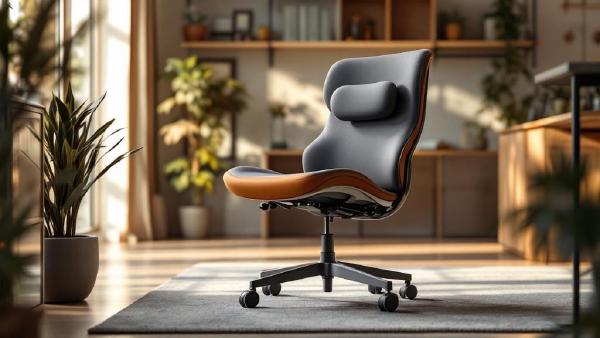
- Herman Miller Aeron Chair - Premium option with excellent lumbar support
- Steelcase Leap V2 - Great adjustability for various body types
- Secretlab Titan Evo - Gaming-style chair perfect for long work sessions
✅ Desk Height and Surface Setup #
Desk Height Optimization:
- Elbow angle 90-110 degrees while typing
- Wrists straight and not bent up or down
- Forearms parallel to floor when hands on keyboard
- Desk allows leg clearance (minimum 24" wide × 17" deep)
Standing Desk Considerations:
- Monitor at eye level when standing
- Anti-fatigue mat for comfort during standing periods
- Footrest or foot rail for position changes
- Alternate sitting/standing every 30-60 minutes
Workspace Organization:
- Frequently used items within arm’s reach (20-22" radius)
- Mouse and keyboard at same height
- Clear legroom without obstructions
- Cable management prevents clutter and trip hazards
Recommended Desk Solutions:
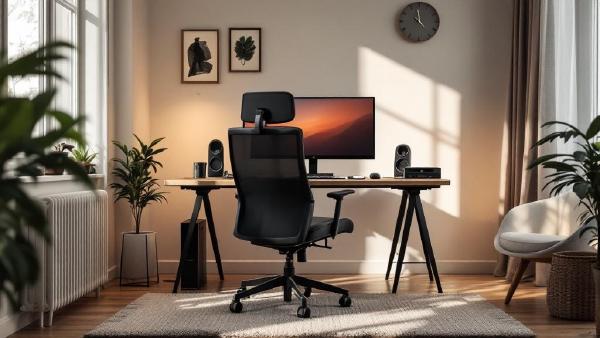
- FlexiSpot E7 Standing Desk - Robust height adjustment for any user
- IKEA BEKANT with OLOV Legs - Budget-friendly adjustable option
- Jarvis Bamboo Standing Desk - Eco-friendly with smooth height transitions
✅ Monitor Positioning and Eye Health #
Monitor Distance and Height:
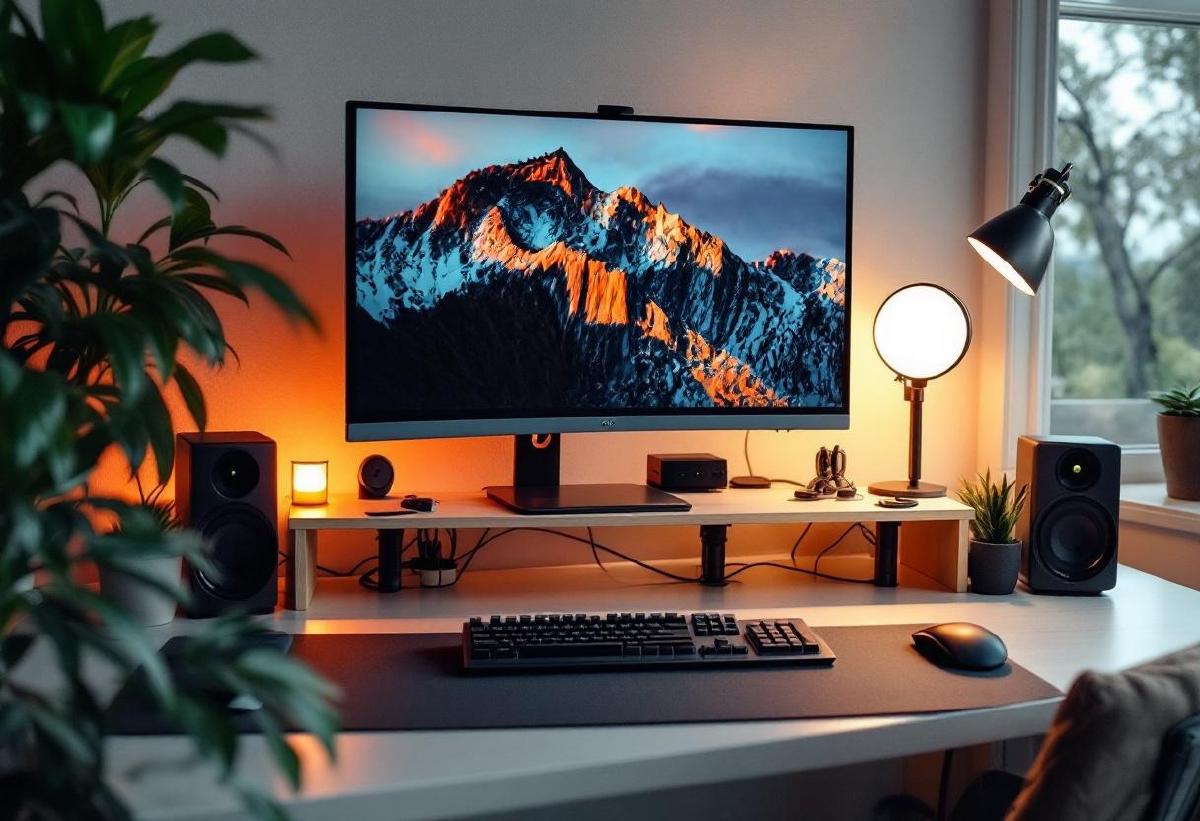
- Screen 20-26 inches from your eyes (arm’s length)
- Top of screen at eye level or slightly below
- Screen tilted 10-20 degrees backward from vertical
- No glare reflection from windows or lights
Dual Monitor Setup:
- Primary monitor directly in front of you
- Secondary monitor at equal height and distance
- Bezels touching or minimal gap between screens
- Both monitors same size and resolution for consistency
Screen Settings for Eye Health:
- Brightness matches surrounding environment
- High contrast between text and background
- Text size large enough to read without leaning forward
- Blue light filter enabled, especially in evening hours
Recommended Monitor Accessories:
- Monitor Arm (Dual) - Perfect positioning flexibility
- Monitor Light Bar - Reduces screen glare and eye strain
- Blue Light Glasses - Extra protection for extended screen time
✅ Keyboard and Mouse Ergonomics #
Keyboard Positioning:
- Keyboard directly in front of you, centered with your body
- Wrists floating above keyboard (not resting on surface)
- Light touch typing - fingers do the work, not wrists
- Negative tilt or flat keyboard position (avoid positive tilt)
Mouse Placement and Use:
- Mouse at same level as keyboard
- Close to keyboard to minimize reaching
- Entire hand on mouse for support
- Mouse size fits your hand comfortably
Alternative Input Devices:
- Ergonomic keyboard if experiencing wrist discomfort
- Vertical mouse for users with wrist issues
- Trackpad or trackball as mouse alternatives
- Voice recognition software for reducing typing strain
Recommended Input Devices:
- Logitech MX Keys Keyboard - Low-profile, comfortable typing
- Microsoft Ergonomic Keyboard - Split design reduces wrist strain
- Logitech MX Master 3S Mouse - Precise, comfortable for extended use
✅ Lighting and Environmental Factors #
Ambient Lighting:
- Even lighting throughout workspace
- No harsh shadows on work surface
- Natural light from side rather than behind or in front of screen
- Task lighting for detailed work
Glare Prevention:
- Window blinds or curtains to control natural light
- Monitor positioned perpendicular to windows
- Matte screen finish or anti-glare screen protector
- Adjustable desk lamp for focused lighting
Air Quality and Temperature:
- Room temperature 68-76°F (20-24°C) for comfort
- Proper ventilation for fresh air circulation
- Humidity levels 30-50% for comfort and health
- Plants or air purifier for improved air quality
Recommended Lighting Solutions:
- BenQ ScreenBar Monitor Light - Perfect monitor illumination
- Philips Hue Go Portable Light - Adjustable ambient lighting
- TaoTronics LED Desk Lamp - Adjustable task lighting
✅ Accessories for Enhanced Ergonomics #
Footrest and Support:
- Adjustable footrest if feet don’t reach floor
- Footrest with massage texture for circulation
- Proper footrest height to maintain 90-degree knee angle
- Stable footrest that doesn’t slide during use
Wrist and Arm Support:
- Wrist rest for keyboard (use only during breaks)
- Mouse pad with wrist support for comfort
- Arm supports if desk doesn’t support forearms
- Document holder to avoid neck strain when referencing papers
Posture Aids:
- Lumbar cushion if chair lacks adequate support
- Seat cushion for additional comfort and height
- Posture reminder app for movement breaks
- Standing desk converter for position variety
Recommended Ergonomic Accessories:
- Everlasting Comfort Lumbar Pillow - Extra lower back support
- 3M Adjustable Footrest - Professional-grade foot support
- Kensington Wrist Rest - Memory foam comfort for typing
Movement and Break Schedule #
✅ Regular Movement Protocol #
Micro-breaks (Every 20-30 minutes):
- 20-20-20 rule: Look at something 20 feet away for 20 seconds every 20 minutes
- Shoulder rolls and neck stretches
- Hand and wrist exercises to prevent stiffness
- Posture check and adjustment
Movement Breaks (Every 1-2 hours):
- Stand and walk for 2-3 minutes
- Light stretching routine focusing on neck, shoulders, and back
- Hydration break to encourage regular movement
- Eye exercises to reduce digital eye strain
Daily Movement Goals:
- 150 minutes of moderate activity per week (CDC recommendation)
- Strength training 2-3 times per week
- Posture awareness throughout the day
- Ergonomic assessment weekly to identify issues
✅ Stretching Routine for Desk Workers #
Neck and Shoulder Stretches:
- Neck rotations - 5 slow circles each direction
- Shoulder shrugs - Hold for 5 seconds, repeat 10 times
- Upper trap stretch - Tilt head to side, hold 15 seconds each
- Chin tucks - Pull chin back, hold 5 seconds, repeat 10 times
Back and Spine Mobility:
- Seated spinal twist - Rotate torso left and right, hold 15 seconds
- Cat-cow stretch - Arch and round back while seated
- Lower back extension - Gentle backward bend while standing
- Hip flexor stretch - Step back into lunge position
Wrist and Forearm Care:
- Wrist circles - 10 circles each direction
- Prayer stretch - Palms together, lower hands while keeping palms touching
- Fist to fan - Make fist, then spread fingers wide, repeat 10 times
- Finger extensions - Spread fingers wide, hold 5 seconds
Technology Setup Optimization #
✅ Software and Digital Wellness #
Productivity Tools:
- Break reminder apps (Stretchly, Time Out, Big Stretch)
- Posture monitoring software for awareness
- Blue light filter software (f.lux, Night Shift)
- Focus apps to minimize distracting notifications
Display Settings:
- Font size optimization - minimum 12pt for comfortable reading
- Dark mode when available to reduce eye strain
- High contrast themes for better text visibility
- Custom zoom levels for specific applications
Workflow Optimization:
- Keyboard shortcuts to reduce mouse usage
- Voice-to-text software for reducing typing
- Multiple desktops for organized workflow
- Cloud storage for easy file access and backup
✅ Cable Management and Organization #
Desk Organization:
- Cable management tray under desk
- Cable clips to route cables along desk edges
- Power strips mounted under desk
- Cord sleeves for bundling multiple cables
Safety Considerations:
- No cables crossing walkways
- Proper power strip ratings for all devices
- Surge protection for valuable electronics
- Regular cable inspection for damage
Quick Daily Ergonomic Assessment #
✅ 60-Second Posture Check #
Head and Neck:
- Ears aligned over shoulders
- Chin parallel to floor
- No forward head posture
- Relaxed jaw and face
Shoulders and Arms:
- Shoulders relaxed and even height
- Arms hanging naturally at sides
- Elbows close to body
- No shoulder elevation or hunching
Torso and Spine:
- Sitting tall with natural spine curves
- Even weight distribution on both hips
- Lower back supported
- Breathing freely and deeply
Legs and Feet:
- Feet flat on floor or footrest
- Knees at 90-degree angle
- Thighs fully supported by chair
- No leg crossing for extended periods
Common Ergonomic Mistakes to Avoid #
❌ Critical Setup Errors #
Monitor Positioning Mistakes:
- Screen too low - Forces neck flexion and forward head posture
- Screen too far - Causes leaning forward and eye strain
- Multiple monitors at different heights or distances
- Glare from windows or overhead lighting
Chair Adjustment Errors:
- Seat too high - Feet dangle, pressure on thighs
- Seat too low - Knees higher than hips, poor circulation
- No lumbar support - Leads to slumping and back pain
- Armrests too high - Shoulder elevation and tension
Workspace Organization Issues:
- Mouse too far from keyboard - Causes shoulder strain
- Frequently used items out of reach - Increases stretching
- Poor lighting - Leads to leaning and squinting
- Cluttered workspace - Reduces efficiency and increases stress
Creating an Ergonomic Culture #
✅ Long-term Success Strategies #
Personal Accountability:
- Regular ergonomic self-assessments
- Tracking comfort levels and adjustments
- Continuing education about workplace wellness
- Sharing knowledge with colleagues and family
Professional Development:
- Ergonomic training for managers and employees
- Workplace assessments by certified professionals
- Investment in quality equipment for long-term health
- Health and wellness programs integration
Technology Integration:
- Wearable devices for posture monitoring
- Smart reminders for movement and breaks
- Ergonomic assessment apps for ongoing optimization
- Virtual reality training for proper positioning
Measuring Success: Key Indicators #
✅ Progress Tracking Metrics #
Physical Comfort:
- Reduced pain levels in neck, back, and shoulders
- Decreased stiffness after long work sessions
- Better sleep quality from reduced work-related tension
- Improved energy levels throughout the day
Productivity Measures:
- Increased focus duration without discomfort
- Reduced sick days related to musculoskeletal issues
- Better work quality due to improved comfort
- Enhanced job satisfaction from comfortable work environment
Health Outcomes:
- Better posture in photos and mirrors
- Increased strength in core and back muscles
- Improved flexibility from regular movement
- Reduced stress from physical comfort
Frequently Asked Questions #
What’s the most important ergonomic adjustment I can make? #
Monitor height adjustment typically provides the biggest immediate impact. Positioning your screen at eye level reduces neck strain and forward head posture, which are common causes of workplace discomfort.
How often should I take breaks during the workday? #
Follow the 20-20-20 rule for eye health and take movement breaks every hour. Even 30-60 seconds of standing and light stretching can significantly reduce muscle tension and improve circulation.
Can I make my workspace ergonomic on a budget? #
Absolutely! Start with proper positioning of existing equipment, add a rolled towel for lumbar support, and adjust your chair height. Many improvements cost nothing but awareness and adjustment.
Should I use a standing desk? #
Alternating between sitting and standing is ideal. If you choose a standing desk, ensure proper setup with monitor at eye level when standing and use an anti-fatigue mat for comfort.
How long does it take to see improvements from ergonomic changes? #
Immediate relief often occurs within hours of proper adjustments. Long-term benefits like reduced chronic pain and improved posture typically develop over 2-4 weeks of consistent proper positioning.
What if my employer won’t provide ergonomic equipment? #
Many inexpensive solutions exist, such as books to raise monitors, rolled towels for lumbar support, and proper positioning of existing equipment. Document any work-related discomfort and present a business case for ergonomic improvements.
Are expensive ergonomic chairs worth the investment? #
Quality chairs with proper adjustability can last 10+ years and significantly impact daily comfort and long-term health. Consider it an investment in your wellbeing rather than just office furniture.
How do I maintain good posture throughout the day? #
Regular awareness checks, movement breaks, and proper equipment setup are key. Consider posture reminder apps or desk mirror positioning to increase awareness of your positioning.
Conclusion: Your Path to Ergonomic Excellence #
Creating an ergonomically sound workspace is an investment in your health, productivity, and quality of life. This comprehensive checklist provides the framework for transforming any workspace into a supportive environment that enhances rather than hinders your work performance.
Key Takeaways: #
- Start with basics - chair height, monitor position, and keyboard placement
- Make gradual adjustments rather than changing everything at once
- Listen to your body and adjust based on comfort and energy levels
- Invest in quality equipment that will serve you for years
- Stay consistent with movement breaks and posture awareness
Implementation Strategy: #
Week 1: Focus on chair and desk height adjustments Week 2: Optimize monitor positioning and lighting Week 3: Add ergonomic accessories as needed Week 4: Establish movement break routines
Remember, the perfect ergonomic setup is one that works for your specific body, work style, and space constraints. Use this checklist as a guide, but don’t hesitate to make personalized adjustments that enhance your comfort and productivity.
Your body will thank you for the attention to ergonomic details, and you’ll likely find that these improvements enhance not just your work performance but your overall daily energy and well-being.
For more workspace optimization ideas, explore our guides on best ergonomic office chairs and setting up dual monitors for productivity to complete your ergonomic workspace transformation.
Also worth reading: keyboard tray.
Also worth reading: document holder.
Also worth reading: task lighting.