A tangled mess of cables under your desk isn’t just unsightly—it’s a productivity killer. Loose cables collect dust, create tripping hazards, and make it nearly impossible to troubleshoot connection issues or add new devices. Worse yet, cable clutter can actually impact your mental focus and work performance.
The good news? Professional cable management is easier than you think. With the right tools and techniques, you can transform your chaotic cable situation into a clean, organized system that looks professional and functions flawlessly. This comprehensive guide will walk you through every step of creating a cable management system that actually works.
Before You Start: Assessment and Planning #
Inventory Your Cables #
Start by identifying every cable under your desk:
- Power cables: Monitor, computer, speakers, desk lamp, phone charger
- Data cables: USB, HDMI, Ethernet, DisplayPort, audio
- Specialty cables: Webcam, microphone, external drives, printers
Measure Your Space #
- Distance from outlets to devices
- Available mounting space under desk edges
- Clearance for chair movement
- Height considerations for cable drops
Choose Your Management Strategy #
Surface-mount approach: Attach solutions directly to your desk Under-desk approach: Mount everything to the desk’s underside Hybrid approach: Combine both methods for optimal results
Essential Cable Management Tools #
1. Under-Desk Cable Tray #
Best Pick: VIVO Under Desk Cable Management Tray - $24.99
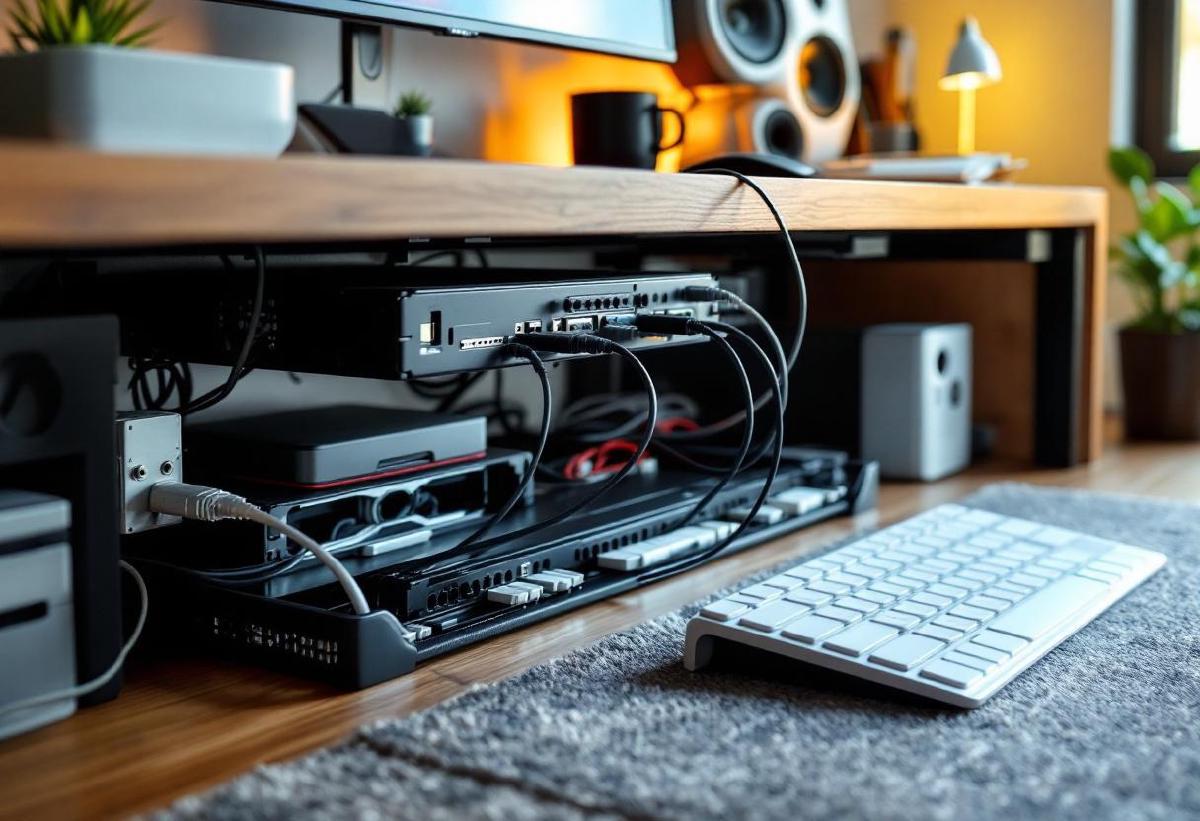
A large under-desk tray is the foundation of any serious cable management system. This 17" tray mounts to your desk’s underside and holds power strips, adapters, and cable routing.
2. Cable Spine/Conduit #
Best Pick: D-Line Cable Spine - $12.99
Flexible cable spine bundles multiple cables together while maintaining easy access for changes. The split design allows adding or removing cables without starting over.
3. Adhesive Cable Clips #
Best Pick: SOULWIT Cable Clips (20-Pack) - $8.99
Small adhesive clips guide individual cables along desk edges and prevent them from falling behind your desk when unplugged.
4. Cable Sleeves #
Best Pick: AGPTEK Cable Sleeve Kit - $15.99
Braided cable sleeves create clean bundles for cables that run together, like from your computer to monitor.
5. Power Strip with Mounting Options #
Best Pick: ECHOGEAR On-Wall Surge Protector - $29.99
A wall-mountable power strip with individual outlet switches reduces cable length and provides clean power management.
6. Cable Labels #
Best Pick: Brother P-touch Label Maker - $19.99
Professional cable labeling prevents confusion during troubleshooting and makes future changes much easier.
Step-by-Step Cable Organization Process #
Step 1: Complete Disconnect #
- Power down all devices and take photos of current connections
- Unplug everything from power outlets and device ports
- Remove all existing cable ties and management attempts
- Clean the area thoroughly - vacuum dust and wipe surfaces
Step 2: Install Cable Management Infrastructure #
Under-Desk Tray Installation:
- Position tray centered under desk, 6" from edge
- Mark screw holes and drill pilot holes
- Secure with provided screws
- Test weight capacity with your power strip
Power Strip Positioning:
- Mount power strip in the cable tray or under desk edge
- Ensure all outlets are accessible
- Position near your main power cable entry point
- Leave room for adapter plugs
Cable Routing Preparation:
- Install adhesive clips along desk edges
- Plan cable paths from tray to devices
- Mark positions for cable spine mounting points
Step 3: Route Power Cables First #
Primary Power Distribution:
- Run main power cable from wall outlet to your mounted power strip
- Use cable spine or conduit for this high-traffic path
- Secure power strip in under-desk tray
- Plugin devices starting with highest power draw
Device Power Routing:
- Monitor power: Direct path along back edge to display
- Computer power: Shortest route to reduce cable length
- Desk accessories: Group USB wall adapters in power strip area
- Lighting: Route lamp cables along desk edges using clips
Step 4: Organize Data Cables #
High-Traffic Data Cables:
- Monitor connections (HDMI/DisplayPort): Bundle with power cable using cable spine
- USB hub cables: Route directly from computer to desk-mounted hub
- Ethernet cable: Secure along wall edge to reduce interference
Temporary Connection Cables:
- USB charging cables: Leave accessible but organized in clips
- Audio cables: Route to easily accessible clip near speaker position
- Device sync cables: Store in drawer organizer when not in use
Step 5: Create Cable Bundles #
Primary Computer Bundle: Use braided cable sleeve to group:
- Monitor power and data cables
- Speaker cables
- Main USB hub connection
Secondary Device Bundle: Group with smaller cable spine:
- Desk lamp power
- Phone charger
- Webcam cable (if not wireless)
Emergency Access Cables: Keep these easily accessible:
- USB charging cables
- HDMI cable for laptop connections
- Audio cables for headphones
Step 6: Label Everything #
Label Standards:
- Power cables: “Monitor Power,” “PC Power,” “Desk Lamp”
- Data cables: “Monitor HDMI,” “USB Hub,” “Ethernet”
- Ports: Label actual device ports for easy identification
Labeling Best Practices:
- Use consistent naming convention
- Place labels where visible but not intrusive
- Include voltage for power adapters
- Date labels for warranty tracking
Advanced Cable Management Techniques #
The “Service Loop” Method #
Create small loops in cables near connection points. This provides slack for device movement while maintaining organization. Particularly important for:
- Monitor adjustment cables
- Keyboard/mouse connections
- Frequently moved devices
Staged Cable Lengths #
Buy cables in appropriate lengths rather than managing excess:
- 3ft cables: Desktop connections (monitor, speakers)
- 6ft cables: Computer to desk-edge devices
- 10ft+ cables: Power and network runs
Dedicated Charging Station #
Create a designated charging area:
- Mount 4-port USB wall charger in accessible location
- Use retractable charging cables to prevent clutter
- Include wireless charging pad for compatible devices
Future-Proofing Your Setup #
- Extra conduit capacity: Run cable spine 50% larger than current needs
- Additional power outlets: Install more capacity than you currently use
- Accessible expansion points: Leave marked locations for adding devices
Common Cable Management Mistakes to Avoid #
Over-Tightening Cable Ties #
Problem: Permanent zip ties that damage cables when removed Solution: Use velcro ties or loose-fitting cable sleeves that allow adjustment
Ignoring Heat Management #
Problem: Bundling power adapters together causing overheating Solution: Space power adapters apart and ensure ventilation
Mixing Power and Data Cables #
Problem: Power cables can cause interference with audio and network cables Solution: Route power and data cables in separate paths when possible
Not Planning for Changes #
Problem: Permanent installations that can’t accommodate new devices Solution: Use modular solutions and leave expansion capacity
Forgetting About Cleaning Access #
Problem: Cable management that prevents easy cleaning Solution: Design paths that allow vacuum access and component removal
Maintenance and Troubleshooting #
Monthly Maintenance Tasks #
- Dust removal: Vacuum cable tray and routing areas
- Connection checks: Verify all connections remain secure
- Label verification: Replace any damaged or unclear labels
- Cable inspection: Look for wear signs on frequently moved cables
Quarterly Reviews #
- Capacity assessment: Determine if current system handles your needs
- Upgrade planning: Research new cable management products
- System optimization: Reorganize based on usage patterns learned
Troubleshooting Guide #
Cables Keep Coming Loose:
- Use stronger adhesive clips
- Reduce tension in cable runs
- Add intermediate support points
Insufficient Power Outlets:
- Upgrade to higher-capacity power strip
- Add secondary power source
- Consolidate USB charging to dedicated hub
Cable Interference Issues:
- Separate power and data cable paths
- Use shielded cables for sensitive connections
- Reroute cables away from interference sources
Product Comparison: Cable Management Solutions #
| Solution Type | Best For | Price Range | Permanence | Capacity |
|---|---|---|---|---|
| Under-Desk Tray | Power strips, adapters | $20-40 | Semi-permanent | High |
| Cable Spine | Multiple cable bundles | $10-20 | Adjustable | Medium |
| Adhesive Clips | Individual cable routing | $5-15 | Permanent | Low |
| Cable Sleeves | Clean bundling | $10-25 | Adjustable | Medium |
| Magnetic Organizers | Metal desk edges | $15-30 | Removable | Medium |
| Desk Grommets | Through-desk cable runs | $5-20 | Permanent | Low-Medium |
Budget-Friendly Alternatives #
DIY Solutions Under $20: #
- Binder clips as temporary cable holders
- Command strips instead of permanent mounting
- Toilet paper tubes as cable organizers
- Velcro strips from craft stores for bundling
Gradual Upgrade Path: #
- Month 1: Basic cable clips and ties ($10)
- Month 2: Add under-desk tray ($25)
- Month 3: Install cable spine system ($15)
- Month 4: Upgrade to professional power strip ($30)
Frequently Asked Questions #
How often should I reorganize my cable management? #
Reorganize whenever you add or remove devices, or about twice yearly for maintenance. A good system should accommodate minor changes without complete reorganization.
Can cable management improve computer performance? #
While cable organization doesn’t directly boost performance, it improves airflow around equipment and reduces electromagnetic interference, which can help maintain stable connections.
What’s the biggest cable management mistake people make? #
Making the system too permanent. Use adjustable solutions that can grow and change with your setup rather than permanent installations that require starting over.
How do I manage cables for a sit-stand desk? #
Use service loops and flexible cable spine that can accommodate height changes. Mount management solutions to the desk itself rather than fixed wall positions.
Should I hire a professional for cable management? #
For basic home office setups, DIY installation works well. Consider professionals for complex setups with many devices, permanent wall mounting, or electrical work.
How much should I budget for proper cable management? #
Plan $50-100 for a complete basic setup, or $100-200 for a premium system with high-quality components and professional appearance.
Conclusion: Your Organized Workspace Awaits #
Effective cable management transforms both the appearance and functionality of your home office. By following this systematic approach, you’ll create a workspace that’s not only visually appealing but also more productive and easier to maintain.
The key to successful cable management lies in planning for both current needs and future growth. Start with quality foundation pieces like an under-desk tray and build your system gradually. Remember that the best cable management system is one you can easily modify as your setup evolves.
Take photos of your organized setup for reference, and don’t be afraid to refine your system over time. With proper cable management in place, you’ll spend less time troubleshooting connections and more time focusing on your work.
Related Articles: