Your keyboard is the primary interface between your thoughts and your screen. If you’re using the flimsy membrane keyboard that came with your computer — or worse, typing on a laptop keyboard for eight hours straight — you’re missing out on speed, comfort, and long-term wrist health.
A quality keyboard transforms your typing experience with tactile feedback, reduces finger fatigue, and can prevent repetitive strain injuries. We’ve tested seven of the best keyboards for working from home in 2026, covering mechanical, ergonomic, and wireless options across every budget.
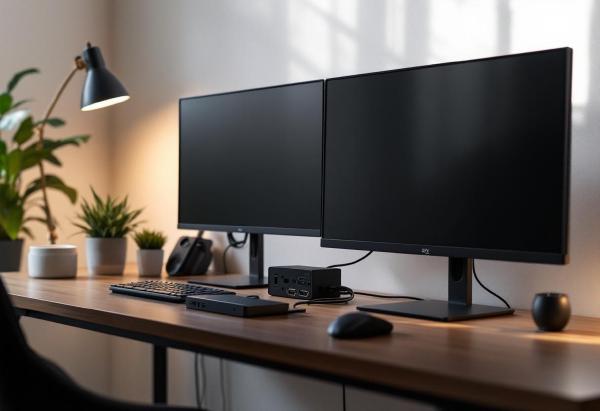
Pair your new keyboard with one of our recommended mice and a proper monitor setup for the ultimate productivity workspace.
Quick Comparison #
| Keyboard | Price | Type | Connectivity | Switch Type | Best For |
|---|---|---|---|---|---|
| Keychron K8 Pro | $110 / £95 | Tenkeyless | Wireless/USB | Hot-swappable | Best overall |
| Logitech MX Keys | $100 / £90 | Full-size | Wireless | Scissor | Mac & PC users |
| Microsoft Surface Keyboard | $100 / £85 | Full-size | Bluetooth | Chiclet | Minimalists |
| Kinesis Freestyle Pro | $169 / £150 | Split ergonomic | USB | Mechanical | Ergonomic needs |
| Apple Magic Keyboard | $99 / £85 | Compact | Bluetooth | Scissor | Mac ecosystem |
| Corsair K70 RGB Pro | $170 / £155 | Full-size | USB/Wireless | Cherry MX | Gaming crossover |
| Dell KB216 | $25 / £20 | Budget | USB | Membrane | Basic needs |
1. Keychron K8 Pro — Best Overall Keyboard for Remote Work #
The Keychron K8 Pro strikes the perfect balance between premium features and practical functionality for home office work. As a tenkeyless (87-key) design, it frees up valuable desk space while maintaining all essential keys for productivity tasks.
What sets the K8 Pro apart is its hot-swappable switches — you can pull out and replace individual key switches without soldering. This means you can customize the typing feel or replace worn switches years down the line. It ships with Keychron K Pro Brown switches that provide a satisfying tactile bump without being too loud for video calls.
The 4,000mAh battery delivers up to 300 hours of use with backlighting off, or about 6 weeks of typical office work. When you do need to charge, USB-C quick charging gives you hours of use from just minutes plugged in.
Multi-device connectivity lets you switch between three devices with a simple key combination — perfect if you juggle a work laptop, personal computer, and tablet. The aluminum frame feels premium without the gaming RGB aesthetics that look out of place in professional settings.
Keychron includes both Windows and Mac keycaps, plus a keycap puller to swap them. The south-facing switches ensure compatibility with Cherry profile keycaps if you want to upgrade later.
Buy on Amazon US | Buy on Amazon UK
Pros:
- Hot-swappable switches for customization
- Excellent battery life (300+ hours)
- Multi-device switching
- Premium aluminum build
- Includes Windows and Mac keycaps
Cons:
- No dedicated function row on compact model
- Switches can be loud for open offices
2. Logitech MX Keys — Best Wireless Keyboard for Professionals #
The MX Keys is Logitech’s flagship productivity keyboard, designed for users who prioritize typing comfort and multi-device workflows over mechanical switches. Its low-profile scissor switches provide a laptop-like typing experience that’s familiar yet more satisfying than most built-in keyboards.
The standout feature is the spherically dished keys — each keycap is slightly concave and shaped to match your fingertips. Combined with the perfect key spacing and tactile feedback, this creates one of the most comfortable typing experiences available. The keys are also backlit with smart illumination that detects your hands approaching and adjusts brightness based on ambient light.
Multi-device functionality is seamless with Logitech Flow software. Switch between three paired devices with dedicated keys, and even copy and paste between them. If you use both Windows and Mac computers, the MX Keys automatically maps keys correctly for each platform.
Battery life is exceptional at up to 5 months with backlighting off, or 10 days with full brightness. USB-C charging means no proprietary cables to lose.
The full-size layout includes a number pad that’s essential for finance and data entry work. The keys are quiet enough for video calls while still providing enough feedback to prevent typing errors.
Buy on Amazon US | Buy on Amazon UK
Pros:
- Exceptionally comfortable typing experience
- Smart backlighting with proximity sensors
- Excellent multi-device support with Logitech Flow
- 5-month battery life
- Quiet operation
Cons:
- Not mechanical (may not satisfy enthusiasts)
- Expensive for a membrane keyboard
- Full-size takes up significant desk space
3. Microsoft Surface Keyboard — Best for Minimalist Setups #
Microsoft’s Surface Keyboard embodies the minimalist design philosophy of the Surface line. If you value clean aesthetics and whisper-quiet typing over tactile feedback, this is your keyboard.
The ultra-thin profile (0.4 inches) looks stunning on any desk and takes up minimal vertical space. The chiclet-style keys have excellent spacing and a satisfying travel distance despite the slim profile. The aluminum construction feels premium and matches perfectly with Surface devices, though it works equally well with any Bluetooth-enabled computer.
Battery life is impressive at up to 12 months from two AAA batteries. The keyboard automatically enters sleep mode when not in use and wakes instantly when you start typing.
The full-size layout includes a proper number pad with excellently spaced keys. Function keys provide quick access to volume, brightness, and Windows-specific features like Task View and Settings.
Typing feel is subjective, but the Surface Keyboard excels at quiet operation. Keys are virtually silent, making it perfect for shared workspaces or late-night work sessions. The travel is short but definitive — you know when a key has been pressed.
Buy on Amazon US | Buy on Amazon UK
Pros:
- Extremely thin and attractive design
- Completely silent typing
- 12-month battery life
- Premium aluminum build
- Excellent key spacing
Cons:
- Shallow key travel may not suit everyone
- Limited customization options
- Windows-focused layout
4. Kinesis Freestyle Pro — Best Ergonomic Keyboard #
The Kinesis Freestyle Pro takes a different approach to keyboard design with its split layout that allows natural arm positioning. If you experience wrist pain or want to prevent repetitive strain injuries, this is the most ergonomically sound option available.
The keyboard splits into two separate pieces connected by a cable, allowing you to position each half at shoulder width and angle them to match your natural arm position. This eliminates the inward wrist bend that causes carpal tunnel syndrome with traditional keyboards.
Kinesis offers optional lift kits that tent the keyboard halves up to 15 degrees, putting your wrists in an even more neutral position. The mechanical switches (Cherry MX Brown) provide excellent tactile feedback while remaining reasonably quiet.
The learning curve is real — expect 1-2 weeks to adjust to the split layout and repositioned modifier keys. But most users report significant comfort improvements after the adjustment period, especially during long typing sessions.
The software allows complete remapping of keys, macros, and even creating different profiles for different applications. This level of customization is overkill for most users but invaluable for power users or those with specific accessibility needs.
Buy on Amazon US | Buy on Amazon UK
Pros:
- Eliminates wrist strain with split design
- Optional tenting for neutral wrist position
- Full key remapping and macro support
- Quality mechanical switches
- Reduces shoulder tension
Cons:
- Significant learning curve (1-2 weeks)
- Expensive compared to traditional keyboards
- Takes up more desk space when split
- Requires software for full functionality
5. Apple Magic Keyboard — Best for Mac Users #
If you’re invested in the Apple ecosystem, the Magic Keyboard offers seamless integration and a typing experience that perfectly matches MacBooks. The scissor switch mechanism provides the same feel as modern MacBook keyboards — polarizing but familiar to Mac users.
The low-profile design looks elegant on any desk and pairs automatically with Mac computers. The rechargeable Lightning battery lasts about a month with typical use and charges quickly when needed.
Key spacing is optimized for macOS shortcuts and includes dedicated keys for Mission Control, Launchpad, and other Mac-specific functions. The function keys work exactly as expected with media controls and brightness adjustment.
The typing experience is love-it-or-hate-it. The keys have very short travel but a definitive tactile bump at actuation. They’re completely silent, making this ideal for quiet environments. Touch typists who learned on older keyboards may find the travel too shallow.
Build quality is typical Apple — premium materials with tight tolerances and a clean design. The angled profile promotes proper wrist position, though it’s not as ergonomic as dedicated ergonomic keyboards.
Buy on Amazon US | Buy on Amazon UK
Pros:
- Perfect integration with Mac ecosystem
- Excellent build quality and design
- Completely silent operation
- Long battery life with Lightning charging
- Compact footprint
Cons:
- Extremely shallow key travel
- Limited compatibility with Windows
- No backlighting
- Expensive for the feature set
6. Corsair K70 RGB Pro — Best for Gaming Crossover #
The Corsair K70 RGB Pro bridges the gap between gaming and productivity keyboards. While designed for gamers, its high-quality mechanical switches and extensive customization options make it excellent for professional work that demands fast, accurate typing.
Cherry MX Red switches provide linear action with no tactile bump — smooth keystrokes that gaming enthusiasts love and surprisingly good for typing. The switches are rated for 50 million keystrokes, essentially lasting forever under normal use.
The RGB backlighting is fully customizable per key through Corsair’s software. You can create subtle, professional lighting or go full rainbow — perfect for users who game after work. The aluminum frame is built like a tank and will outlast cheaper keyboards by years.
Dedicated media controls include a volume wheel and playback buttons that don’t require function key combinations. The detachable USB-C cable makes the keyboard easy to transport or replace if damaged.
Anti-ghosting ensures every keypress registers during fast typing or gaming. The tournament switch locks Windows keys to prevent accidental minimization during intense work sessions.
Buy on Amazon US | Buy on Amazon UK
Pros:
- Premium mechanical switches (50M keystroke rating)
- Fully customizable RGB backlighting
- Dedicated media controls
- Tank-like aluminum construction
- Excellent for both gaming and productivity
Cons:
- Gaming aesthetics may not suit all offices
- Full-size footprint takes significant desk space
- No wireless option
- Switches can be loud for quiet environments
7. Dell KB216 — Best Budget Option #
Sometimes you just need a basic keyboard that works reliably without breaking the budget. The Dell KB216 delivers exactly that — a no-frills membrane keyboard that handles daily typing tasks without complaints.
The full-size layout includes a number pad and standard function keys. The membrane switches are quiet and require minimal force to actuate, reducing finger fatigue during long typing sessions. The keys have clear, readable legends that won’t wear off with heavy use.
Spill resistance protects against coffee accidents — a major advantage over mechanical keyboards in office environments. The low profile means minimal wrist extension, and the plug-and-play USB connection works with any computer without driver installation.
While it lacks the premium feel and features of more expensive options, the KB216 is surprisingly comfortable for extended typing. The key spacing follows standard layouts, so there’s no learning curve if you’re coming from another full-size keyboard.
This is the practical choice for basic office tasks, secondary computers, or users who prioritize function over form. It’s also excellent for environments where keyboards take abuse or need frequent replacement.
Buy on Amazon US | Buy on Amazon UK
Pros:
- Extremely affordable
- Spill resistant design
- Quiet operation
- Standard layout with no learning curve
- Durable for the price point
Cons:
- Basic membrane switches lack tactile feedback
- No backlighting
- Plastic construction feels cheap
- No wireless option
- Limited customization
Choosing the Right Keyboard for Your Needs #
Mechanical vs Membrane #
Mechanical keyboards use individual switches under each key, providing tactile feedback and audible clicks. They’re more durable, offer better typing accuracy, and can be customized with different switch types. However, they’re typically louder and more expensive.
Membrane keyboards use a rubber dome system that’s quieter and more affordable but provides less tactile feedback and wears out faster with heavy use.
Switch Types (for Mechanical Keyboards) #
- Linear (Red switches): Smooth keystroke with no tactile bump. Good for gaming and fast typing.
- Tactile (Brown switches): Noticeable bump when the key activates. Best balance for typing and gaming.
- Clicky (Blue switches): Tactile bump plus audible click. Excellent for typing but can be disruptive in shared spaces.
Layout Considerations #
- Full-size: Includes number pad. Essential for data entry but takes up significant desk space.
- Tenkeyless (TKL): Removes number pad for a more compact footprint while keeping function keys.
- 60-65%: Ultra-compact with minimal footprint but requires function key combinations for some keys.
Wireless vs Wired #
Wireless keyboards offer cleaner desk setup and flexibility but require charging/battery replacement. Modern wireless keyboards have minimal latency that won’t affect typing.
Wired keyboards provide consistent performance without battery concerns but add cable clutter to your workspace.
Ergonomic Tips for Any Keyboard #
Even the best keyboard won’t prevent strain if your setup isn’t ergonomically sound:
- Keep your keyboard at elbow height with your forearms parallel to the floor
- Position the keyboard close enough that your shoulders stay relaxed
- Consider a keyboard tray if your desk is too high
- Take breaks every hour to stretch your hands and wrists
- Pair with an ergonomic mouse for complete comfort
For more setup guidance, check our complete ergonomic desk setup guide.
Frequently Asked Questions #
Q: Are mechanical keyboards worth it for office work? A: Yes, mechanical keyboards provide better tactile feedback, increased durability, and can reduce typing fatigue. They’re especially beneficial for heavy typists and programmers. However, they’re typically louder than membrane keyboards.
Q: What’s the difference between Cherry MX Brown and Red switches? A: Brown switches have a tactile bump you can feel when the key activates, making them excellent for typing accuracy. Red switches are linear with no bump, providing smooth keystrokes that some prefer for both gaming and typing.
Q: Should I choose full-size or tenkeyless for office work? A: Choose full-size if you regularly input numbers or work with spreadsheets. Choose tenkeyless if you want more desk space and rarely use the number pad — you can always add a separate numberpad later if needed.
Q: How long do mechanical keyboards last? A: Quality mechanical switches are rated for 50-100 million keystrokes, which translates to decades of normal use. Most mechanical keyboards will outlast several computers with proper care.
Q: Can I use a gaming keyboard for office work? A: Absolutely. Gaming keyboards often have superior build quality and features that benefit office work, like programmable keys and excellent switches. Just be aware that RGB lighting and gaming aesthetics might not suit all professional environments.
Q: What’s the best keyboard for preventing wrist pain? A: Split ergonomic keyboards like the Kinesis Freestyle Pro are most effective for preventing wrist strain. They allow natural arm positioning and eliminate inward wrist bend. For traditional keyboards, look for low-profile designs with neutral wrist positioning.
Q: Do I need software for keyboard customization? A: Basic keyboards work plug-and-play without software. However, advanced features like programmable keys, lighting control, and multi-device switching typically require manufacturer software. Most software is optional — keyboards work fine without it for basic typing.
A quality keyboard is an investment in your daily comfort and productivity. Whether you choose tactile mechanical switches, silent membrane keys, or an ergonomic split design, upgrading from a basic keyboard will transform your typing experience and potentially prevent repetitive strain injuries from long work sessions.
Also worth reading: Keychron vs NuPhy comparison.
Also worth reading: MX Keys vs Magic Keyboard.