A second screen boosts productivity by roughly 20–30% for most knowledge workers. That’s not marketing fluff — it’s backed by research from Jon Peddie Research and Microsoft’s own internal studies. But what if your second screen needs to travel with you?
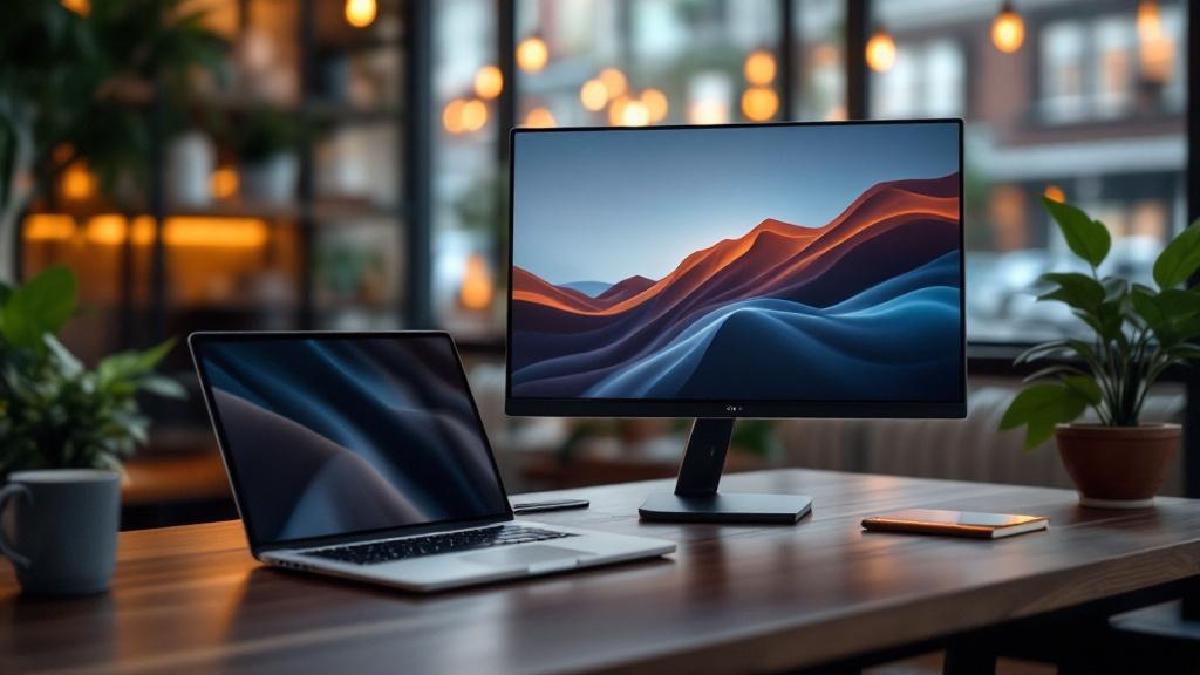
Portable monitors solve a specific problem: giving you dual-monitor capability anywhere — coffee shops, co-working spaces, hotel rooms, or just moving between rooms at home. They’re typically 13–17 inches, powered by a single USB-C cable, and light enough to toss in a laptop bag.
We compared over 25 portable monitors on display quality, connectivity, weight, and real-world usability for office work. Here are the seven best options for 2026.
Quick Comparison Table #
| Monitor | Price (US/UK) | Size | Resolution | Weight | Panel | Best For |
|---|---|---|---|---|---|---|
| ASUS ZenScreen MB16ACV | $250 / £220 | 15.6″ | 1080p | 1.5 lbs | IPS | Overall pick |
| Lenovo ThinkVision M14t | $350 / £310 | 14″ | 1080p | 1.3 lbs | IPS | Touch input |
| INNOCN 15K1F | $320 / £280 | 15.6″ | 4K OLED | 1.6 lbs | OLED | Display quality |
| ViewSonic VG1655 | $210 / £185 | 15.6″ | 1080p | 1.75 lbs | IPS | Budget value |
| Espresso Display V2 | $400 / £355 | 15.6″ | 1080p | 1.3 lbs | IPS | Premium design |
| UPERFECT 16″ 2K | $200 / £175 | 16″ | 2560×1600 | 1.7 lbs | IPS | Resolution value |
| Lepow C2S | $160 / £140 | 15.6″ | 1080p | 1.7 lbs | IPS | Entry-level |
What Makes a Good Portable Monitor for Work? #
Not all portable monitors are created equal, and features that matter for gaming are different from what matters for productivity.
Resolution and screen size. For office work — documents, spreadsheets, email — 1080p on a 15.6-inch screen is perfectly sharp. If you do design work or want more screen real estate via scaling, 2K (2560×1600) hits a sweet spot. 4K is gorgeous but can cause scaling headaches on smaller screens and drains more power.
USB-C connectivity is essential. The best portable monitors run on a single USB-C cable that carries video and power simultaneously. This means one cable from your laptop to the monitor — no separate power adapter needed. Check that your laptop’s USB-C port supports DisplayPort Alt Mode (most modern laptops do, but older ones may not).
Weight matters if you travel. Portable monitors range from about 1.3 to 2.5 lbs. If this is going in your laptop bag daily, every ounce counts. Under 1.7 lbs is the sweet spot.
Panel type: IPS panels offer good color accuracy and wide viewing angles — ideal for work. OLED gives you perfect blacks and stunning contrast but costs more and has potential burn-in concerns for static content (like a Windows taskbar).
Brightness. If you’ll use the monitor outdoors or near windows, look for 300+ nits. Most portable monitors sit around 250–300 nits, which is fine for indoor use but struggles in direct sunlight.
Built-in stand or kickstand. Some monitors include an integrated kickstand, while others use their protective cover as a stand. Integrated kickstands are generally more stable, but covers-as-stands save weight.
1. ASUS ZenScreen MB16ACV — Best Overall #
Price: $250 / £220
Check Price on Amazon US → Check Price on Amazon UK →
ASUS essentially created the mainstream portable monitor category with the ZenScreen line, and the MB16ACV is their most refined productivity option. It’s the portable monitor equivalent of the reliable sedan — not the flashiest, but it does everything well.
The 15.6-inch 1080p IPS panel delivers accurate colors (covering 100% of sRGB) with wide 178-degree viewing angles. Text rendering is sharp at native resolution without any scaling adjustments needed on Windows or macOS.
At 1.5 lbs, it’s notably lighter than most 15.6-inch competitors. The included smart case doubles as a stand with multiple angle positions, and it uses a foldable design that protects the screen during transport without adding bulk.
A single USB-C cable handles video and power. For older laptops without USB-C video output, ASUS includes a USB-C to A adapter with an HDMI adapter option, though you’ll need separate power in that configuration.
The auto-rotate feature using the built-in accelerometer is a small but useful touch — flip the monitor to portrait mode for long documents or code, and it switches automatically.
Pros:
- Excellent all-around balance of quality, weight, and price
- 100% sRGB coverage with good color accuracy out of the box
- Auto-rotate to portrait mode via built-in accelerometer
- Single USB-C cable for video and power
- Smart case/stand is well-designed and functional
- 1.5 lbs — light enough for daily carry
Cons:
- 250 nits brightness is adequate indoors but struggles near windows
- 1080p may feel limiting if you’re used to higher resolution displays
- The case-as-stand can feel less stable than a rigid kickstand
- No built-in speakers (most people use headphones anyway)
Best for: Remote workers who need a reliable, portable second screen that works well for standard office tasks — documents, email, spreadsheets, video calls. The best all-rounder at a fair price.
2. Lenovo ThinkVision M14t — Best with Touch #
Price: $350 / £310
Check Price on Amazon US → Check Price on Amazon UK →
The ThinkVision M14t adds 10-point multitouch to the portable monitor formula, which sounds like a gimmick until you actually use it. Dragging files between screens, scrolling through documents, or tapping through presentations becomes surprisingly natural when you can just touch the screen.
The 14-inch size is slightly smaller than most options here, which makes it more compact for travel but gives you less screen real estate. For single-task work (a reference document, Slack, or a video call window), 14 inches is plenty. For spreadsheets or side-by-side work, you might wish for more space.
Build quality is ThinkPad-grade — the same matte black finish and sturdy feel you’d expect from Lenovo’s business line. The tilt stand integrated into the bottom edge is more stable than most cover-stands and adjusts across a useful range of angles.
The touch digitizer also supports active pen input (pen sold separately), which makes this a surprisingly capable annotation and whiteboarding tool for meetings.
Pros:
- 10-point multitouch adds genuine productivity value
- Active pen support for annotation and drawing
- ThinkPad-quality build — sturdy and professional
- Integrated tilt stand is more stable than cover-stands
- 1.3 lbs — the lightest in this roundup
- Dual USB-C ports for flexible cable routing
Cons:
- 14″ screen is smaller than the 15.6″ standard
- $350 is premium pricing for 1080p
- Touch feature is less useful on macOS than Windows
- 300 nits brightness is good but not class-leading
Best for: Business users who value touch input for presentations, annotations, or general navigation. Especially strong as a ThinkPad companion for Lenovo laptop users.
3. INNOCN 15K1F — Best Display Quality #
Price: $320 / £280
Check Price on Amazon US → Check Price on Amazon UK →
If display quality is your priority — you’re a designer, photographer, or just someone who appreciates a beautiful screen — the INNOCN 15K1F is in a different league. The 4K OLED panel delivers perfect blacks, infinite contrast, and vivid colors that make an IPS panel look washed out by comparison.
The 3840×2160 resolution on a 15.6-inch panel gives you incredibly sharp text and images. If you’re working with photos, design mockups, or video content, the extra resolution and OLED color accuracy are genuinely useful, not just nice-to-have.
The tradeoff is power consumption. A 4K OLED panel draws more power than a 1080p IPS, which means your laptop battery will drain faster when driving this monitor. Plan on roughly 15–20% more battery drain compared to a standard 1080p portable monitor.
There’s also the burn-in question. OLED screens can develop persistent ghost images from static content over time. For office work with static taskbars and toolbars, this is a real consideration over years of use. INNOCN includes pixel-shift technology to mitigate this, but IPS is inherently safer for static content.
Pros:
- 4K OLED is stunning — perfect blacks, vibrant colors, infinite contrast
- 100% DCI-P3 color coverage for professional color work
- Sharpest text rendering in this roundup
- Good build quality with magnetic stand cover
- HDR support for media consumption
Cons:
- Higher power draw reduces laptop battery life noticeably
- Burn-in risk with static office content over time
- $320 is mid-range but you’re paying for the panel, not features
- Reflective glossy screen is less ideal in bright environments
- 4K scaling can cause compatibility issues with some apps
Best for: Creative professionals, designers, and anyone who needs color-accurate output on the go. Also excellent for anyone who uses their portable monitor for media consumption alongside work.
4. ViewSonic VG1655 — Best Budget Value #
Price: $210 / £185
Check Price on Amazon US → Check Price on Amazon UK →
ViewSonic is a monitor company first and foremost, and that expertise shows in the VG1655. While it doesn’t have flashy features, the fundamentals are solid: a well-calibrated IPS panel, a sturdy kickstand, and reliable USB-C connectivity at a competitive price.
The integrated kickstand folds out from the back of the monitor and provides stable support at multiple angles. It’s more reliable than cover-stands and doesn’t add anything to carry separately. The kickstand alone is a significant practical advantage for daily use.
Color accuracy is better than you’d expect at this price — ViewSonic calibrates these panels to reasonable standards, and for document work, web browsing, and video calls, the display looks great. It’s not color-critical accurate, but it’s well above “cheap monitor” territory.
Dual USB-C ports (one on each side) let you route cables from either direction, which sounds minor but is genuinely useful when your laptop is to the left on one desk and to the right on another.
Pros:
- Excellent value at $210
- Integrated kickstand is more stable than cover-stands
- Dual USB-C ports for flexible cable routing
- Good factory color calibration for the price
- Solid build quality from a reputable monitor brand
Cons:
- 1.75 lbs — slightly heavier than premium options
- 250 nits brightness is merely adequate
- No touch input
- Design is functional rather than sleek
- Cover sold separately
Best for: Practical buyers who want a reliable portable monitor from a known brand without paying a premium for design or features they won’t use.
5. Espresso Display V2 — Best Premium Design #
Price: $400 / £355
Check Price on Amazon US → Check Price on Amazon UK →
The Espresso Display is what happens when a portable monitor is designed by people who care about aesthetics as much as function. The aluminum chassis is genuinely beautiful — thin bezels, clean lines, a premium weight-in-hand feel that matches Apple’s design language perfectly.
At 1.3 lbs and 5.3mm thin, it’s the thinnest monitor in this roundup by a significant margin. It looks and feels like a high-end tablet rather than a portable monitor.
The display itself supports touch input with 10-point multitouch, and Espresso’s companion software (espresso Flow) adds macOS window management features that make the touch integration smoother. It’s optional but well-made.
The magnetic mount system (sold separately as the Stand) is clever but expensive — it uses magnets to hold the monitor in place and allows infinite angle adjustment. Without it, you need the included protective sleeve propped up as a stand, which is less stable.
The catch is price. At $400 for a 1080p 15.6-inch panel, you’re paying a significant premium for design and touch. The display quality matches but doesn’t exceed the ASUS ZenScreen at $150 less.
Pros:
- Stunning industrial design — the best-looking portable monitor available
- 5.3mm thin and 1.3 lbs — ultra-portable
- 10-point touch with good companion software
- Premium aluminum build quality
- Excellent macOS integration via espresso Flow
Cons:
- $400 for 1080p is a steep premium for aesthetics
- Magnetic stand costs extra ($70+)
- Included sleeve-stand is mediocre
- Limited to USB-C only (no mini-HDMI fallback)
- 300 nits brightness is good but not exceptional
Best for: Design-conscious MacBook users who want a portable monitor that matches their laptop’s aesthetic. You’re paying for premium design and the complete Apple-style experience.
6. UPERFECT 16″ 2K — Best Resolution Value #
Price: $200 / £175
Check Price on Amazon US → Check Price on Amazon UK →
If you want more resolution than 1080p without paying OLED prices, the UPERFECT 16″ 2K is the sweet spot. The 2560×1600 resolution on a 16-inch panel gives you noticeably sharper text than 1080p and roughly 77% more screen real estate for side-by-side window work.
The 16-inch size is also worth noting — it’s the largest in this roundup and gives you the closest experience to using a standard desktop monitor. The extra half-inch over 15.6″ doesn’t sound like much, but the slightly taller 16:10 aspect ratio adds meaningful vertical space for documents and web pages.
The display covers 100% sRGB with decent accuracy, and the IPS panel has good viewing angles. It won’t match the INNOCN OLED for color work, but for general productivity, it’s a significant step up from budget 1080p options.
Build quality is respectable for the price, with a metal alloy back panel and a kickstand cover. The kickstand is a bit floppy at extreme angles but holds well in the standard working range.
Pros:
- 2560×1600 resolution is a major upgrade over 1080p at this price
- 16:10 aspect ratio adds useful vertical space
- 16″ screen is the largest in this roundup
- $200 is excellent value for 2K resolution
- 100% sRGB coverage
- Mini-HDMI input as backup for older laptops
Cons:
- 1.7 lbs is heavier than premium options
- Kickstand cover could be more rigid
- Higher resolution draws more power than 1080p
- Brand is less established than ASUS, Lenovo, or ViewSonic
- 280 nits brightness is average
Best for: Productivity-focused users who want the sharpest text and most screen real estate without paying premium prices. The best resolution-per-dollar option.
7. Lepow C2S — Best Entry-Level #
Price: $160 / £140
Check Price on Amazon US → Check Price on Amazon UK →
The Lepow C2S is the entry point. At $160, it gives you a functional 15.6-inch 1080p IPS panel with USB-C and mini-HDMI input, a protective cover that doubles as a stand, and surprisingly decent image quality.
It’s not going to wow you with build quality or features. The plastic chassis is lightweight but feels obviously cheaper than the aluminum options. The cover-stand works but requires careful positioning to avoid the monitor toppling over on uneven surfaces.
What the Lepow does well is the basics: the screen is bright enough for indoor use, text is sharp at 1080p, and the USB-C connection works as expected. There are no bonus features — no touch, no auto-rotate, no fancy software. Just a screen that works.
The inclusion of mini-HDMI alongside USB-C is practical for users with older laptops that lack USB-C video output. You’ll need a separate power source via USB when using HDMI, but at least you have the option.
Pros:
- $160 is the lowest price for a usable portable monitor
- Both USB-C and mini-HDMI inputs for broad compatibility
- Adequate 1080p IPS panel for office work
- Lightweight at 1.7 lbs
- Built-in speakers (basic but functional)
Cons:
- Plastic build feels budget
- Cover-stand is less stable than kickstand designs
- 250 nits brightness is just adequate
- No touch input
- Limited tilt angle options
Best for: First-time portable monitor buyers who want to try the dual-screen workflow without a significant investment. A solid “try before you commit” option.
How to Get the Best Setup with a Portable Monitor #
A portable monitor on its own is half the equation. Here’s how to maximize the experience:
Use a laptop stand to match heights. Your laptop screen and portable monitor should be at roughly the same eye level. Elevating your laptop with a stand brings both screens to a comfortable viewing height and reduces neck strain.
Get a USB-C docking station for desk setups. If you use the portable monitor at a desk alongside other peripherals, a dock lets you connect everything through a single cable.
Consider a desk mat for stability. The rubber surface of a desk mat prevents the monitor’s kickstand or cover-stand from sliding on smooth desks.
Calibrate display settings to match. If your laptop and portable monitor have noticeably different color temperatures, adjust one to match the other. Mismatched white balance across screens is more distracting than you’d expect.
Frequently Asked Questions #
Can any laptop run a portable monitor? #
Most modern laptops with USB-C (Thunderbolt 3/4 or USB-C with DisplayPort Alt Mode) can drive a portable monitor with a single cable. Older laptops without USB-C video output can use mini-HDMI models with a separate power source. Check your laptop’s USB-C specs — charging-only USB-C ports won’t work for video.
Does a portable monitor drain laptop battery faster? #
Yes. A portable monitor powered via USB-C draws 5–15W from your laptop, which typically reduces battery life by 15–30% depending on the monitor’s resolution and brightness. 4K and OLED panels draw more than 1080p IPS panels.
What resolution should I choose for work? #
1080p is fine for standard office tasks at 15.6 inches. If you work with dense text, spreadsheets, or design files, 2K (2560×1600) is noticeably sharper and gives you more usable space. 4K is beautiful but can cause scaling issues and drains more power.
How do I connect a portable monitor to a MacBook? #
MacBooks with M-series chips support one external display natively via USB-C (M1/M2 standard chips). The M1/M2/M3 Pro and Max chips support multiple external displays. Simply connect via USB-C — macOS will detect the monitor automatically. For M1/M2 base models that already have one external monitor, you may need DisplayLink software.
Are portable monitors good for video calls? #
Yes — using a portable monitor for your video call window frees up your main screen for notes, documents, or screen sharing. Since most webcams mount on your laptop or main monitor, keep the call window on the portable screen and your working content on the primary display.
Can I use a portable monitor vertically? #
Most portable monitors support portrait orientation. Some (like the ASUS ZenScreen) auto-rotate via a built-in sensor. Others require manually setting the display orientation in your OS settings. Portrait mode is excellent for reading long documents, code, or chat windows.
The Bottom Line #
The ASUS ZenScreen MB16ACV is our top recommendation for most remote workers — it nails the fundamentals at a fair price. If you want the best display quality and budget allows, the INNOCN 15K1F OLED is stunning. For the best value with higher resolution, the UPERFECT 16″ 2K at $200 is hard to beat.
A portable monitor won’t change your life, but it will genuinely make you more productive wherever you work. That’s worth $160–400.
Also worth reading: privacy screen.