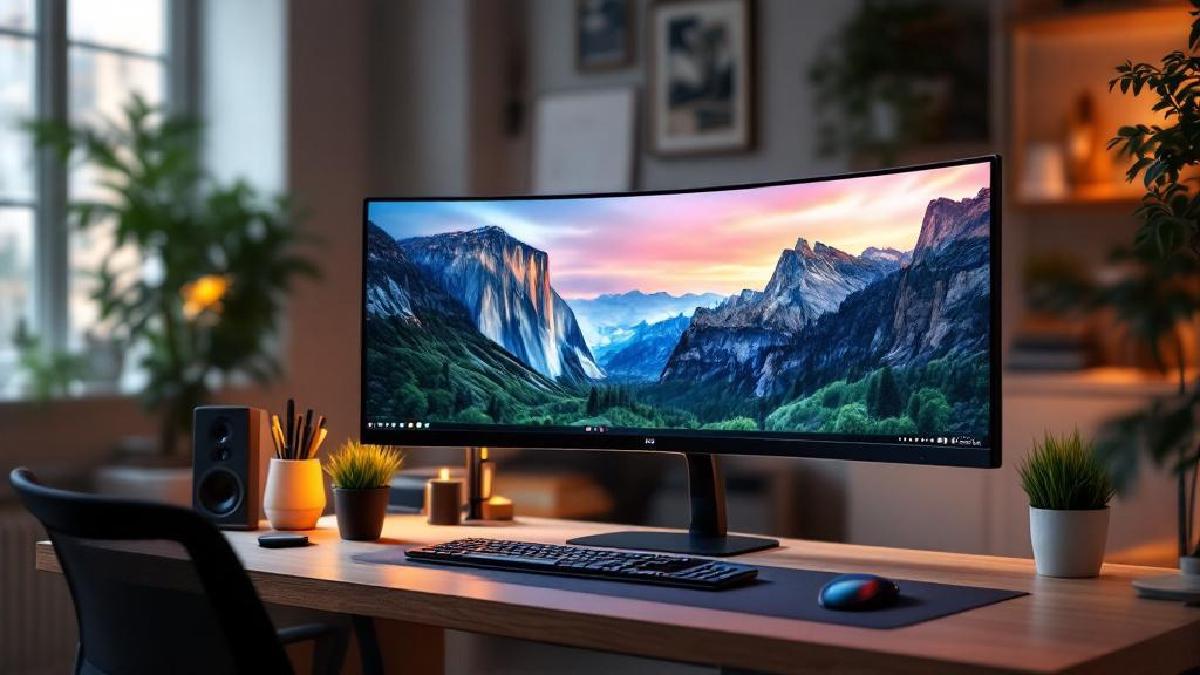
The jump from a standard 27-inch monitor to an ultrawide is one of the most noticeable productivity upgrades in a home office. You’re not just getting more pixels — you’re getting a fundamentally different way to work. Two windows side by side at full size. A spreadsheet and your email open simultaneously without one cramping the other. A browser alongside your document with room to actually read both.
The 34-inch ultrawide (3440×1440) is the sweet spot: wide enough to feel genuinely expansive, not so wide that you’re turning your head to reach the corners. Curved panels bring the edges closer to your field of view and reduce neck movement. USB-C connectivity simplifies your desk by letting a laptop deliver video, data, and power through a single cable.
The range covered here spans $250 to $750 — a wide price band with real differences at each tier. Here’s what those differences actually mean for day-to-day work.
Quick Comparison Table #
| Monitor | Price (USD/GBP) | Resolution | Panel | USB-C (Power) | KVM | Curvature | Best For |
|---|---|---|---|---|---|---|---|
| Dell U3423WE | $620 / £496 | 3440×1440 | IPS | Yes (90W) | Yes | 1900R | Best all-round work ultrawide |
| LG 34WQ75C-B | $400 / £320 | 3440×1440 | IPS | Yes (96W) | No | 1000R | Best mid-range value |
| ASUS ProArt PA348CGV | $550 / £440 | 3440×1440 | IPS | Yes (90W) | No | Flat | Best for creative work |
| Samsung S34C500GAG | $250 / £200 | 3440×1440 | VA | No | No | 1000R | Best budget entry |
| HP E34m G4 | $500 / £400 | 3440×1440 | IPS | Yes (100W) | No | 1000R | Best for HP/enterprise users |
| Alienware AW3423DWF | $750 / £600 | 3440×1440 | QD-OLED | No | No | 1800R | Best image quality |
1. Dell U3423WE — Best All-Round Ultrawide for Work #
Price: ~$620 / £496 Check price on Amazon US → Check price on Amazon UK →
The Dell U3423WE is the benchmark for ultrawide productivity monitors. It does everything well and adds a built-in KVM switch that’s genuinely transformative if you work with two computers — allowing you to control two systems with one keyboard, mouse, and monitor, switching between them with a button press. For home office workers who keep a personal laptop alongside a work machine, or IT professionals who manage multiple systems, this alone justifies much of the price premium.
The IPS panel covers 100% of the sRGB colour gamut and 98% of DCI-P3, with factory calibration that produces accurate colours out of the box. The 60Hz refresh rate is fine for productivity work — you won’t be gaming competitively on this — and the 1900R curvature feels natural at the 34-inch diagonal. Text is sharp at 3440×1440, and the panel brightness (400 nits) handles mixed lighting environments well.
USB-C connectivity is excellent: the single USB-C port delivers 90W of power delivery, enough to charge most laptops while receiving video. The USB hub built into the monitor includes two USB-C and four USB-A downstream ports, which effectively turns the monitor into the docking station for your desk. Combined with a good monitor arm to get the screen at the right height, this setup can eliminate most cable clutter.
Build quality is Dell’s flagship UltraSharp standard: solid metal stand with height, tilt, swivel, and pivot adjustment (though pivoting a 34-inch ultrawide is rarely practical), and Dell’s excellent on-screen display system. The five-year warranty and Dell Premium Panel Guarantee (replacement for any pixel defect, no questions) is worth factoring into the price comparison.
One limitation: the 60Hz refresh rate will feel slow to anyone accustomed to 120Hz or higher displays. For pure productivity this doesn’t matter — you’re not gaming. But cursor movement and scrolling feel less smooth than higher refresh rate alternatives. If smooth motion is a priority, the AW3423DWF is a better choice.
Key details:
- Panel: IPS, 3440×1440, 60Hz
- USB-C: 90W power delivery
- KVM switch: Yes (2 upstream inputs)
- Colour gamut: 100% sRGB, 98% DCI-P3
- Curvature: 1900R
- Warranty: 5 years with premium panel guarantee
Best for: Home office workers who use two computers (work and personal laptop) and want to control both with one keyboard and mouse setup. The KVM switch is the feature that makes this specific model worth its premium over similar options.
2. LG 34WQ75C-B — Best Mid-Range Ultrawide Value #
Price: ~$400 / £320 Check price on Amazon US → Check price on Amazon UK →
At $400, the LG 34WQ75C-B hits a price point that makes it accessible for home offices that can’t justify the Dell’s premium. It doesn’t have a KVM switch, but the core specifications are competitive: 3440×1440 IPS panel, 100W USB-C power delivery (the highest in this roundup), and a 1000R curve that’s noticeably tighter than the Dell’s 1900R — which feels more immersive but takes a few days to adjust to.
The IPS panel is strong. LG’s Nano IPS technology delivers wide viewing angles and good colour accuracy — 99% sRGB coverage — and the 300 nits typical brightness is adequate for most indoor lighting conditions, though it’s less capable in bright environments than the Dell. The 75Hz refresh rate is a small upgrade over 60Hz — subtle but noticeable in everyday use, particularly when scrolling text or moving windows.
LG’s OnScreen Control software lets you divide the screen into virtual sections — effectively a built-in split-screen manager. You can snap windows to predefined zones without third-party software, which is one of the main productivity arguments for ultrawides. Works well with Windows snap features and Mac Stage Manager.
USB hub is limited: two USB-A downstream ports and one USB-C downstream. It’s functional but less generous than the Dell’s six-port hub. If you have multiple peripherals — keyboard, mouse, webcam, external drive — you may still need a USB-C docking station alongside the monitor.
Key details:
- Panel: Nano IPS, 3440×1440, 75Hz
- USB-C: 96W power delivery
- Colour gamut: 99% sRGB, 98% DCI-P3
- Curvature: 1000R
- Built-in OnScreen Control split-screen management
- 3-year warranty
Best for: Home office users who want a quality ultrawide experience with USB-C single-cable connectivity at a more accessible price point. Good choice if you have one primary laptop and don’t need KVM.
3. ASUS ProArt PA348CGV — Best for Creative and Colour-Accurate Work #
Price: ~$550 / £440 Check price on Amazon US → Check price on Amazon UK →
The ASUS ProArt PA348CGV is the flattest monitor in this roundup — no curve — and that’s intentional. ProArt is ASUS’s professional creative line, and for colour-critical work (graphic design, photography, video editing), a flat panel is preferable because it avoids the colour shift that curved panels introduce at the edges of the screen. If you’re judging colours across the full width of the display, a flat IPS is more reliable than a curved alternative.
The colour accuracy specifications are stronger than any other monitor here: 98% DCI-P3, 100% sRGB, and 85% Rec. 2020 coverage, with factory calibration and a Calman verification report included. ΔE colour accuracy is rated below 2 — meaning colours are accurate to within the threshold where most eyes can’t distinguish the difference. For office document work, this level of colour accuracy is overkill. For anyone doing visual work alongside documents, it’s genuinely valuable.
The 75Hz refresh rate matches the LG, and the 90W USB-C power delivery is solid. ASUS includes their ProArt Palette software for monitor calibration and quick-switch colour profiles — you can set up profiles for different workflows (sRGB for documents, DCI-P3 for video review) and switch between them quickly. The stand offers full ergonomic adjustment including height, tilt, swivel, and portrait rotation.
The connectivity is strong: USB-C with DisplayPort Alt Mode, HDMI 2.0, DisplayPort 1.4, and a USB hub. The ASUS Dial — a physical dial on the monitor base — provides quick navigation of settings and ProArt software, a thoughtful addition for users who frequently change colour modes.
Key details:
- Panel: Flat IPS, 3440×1440, 75Hz
- Colour accuracy: 98% DCI-P3, ΔE < 2, Calman verified
- USB-C: 90W power delivery
- No curve — flat panel for colour-critical work
- ASUS ProArt Palette calibration software
- Full ergonomic stand adjustment
Best for: Designers, photographers, video editors, or anyone whose work involves colour-accurate visuals. Also strong for mixed creative/productivity roles where a single display handles both office work and design work.
4. Samsung S34C500GAG — Best Budget Ultrawide #
Price: ~$250 / £200 Check price on Amazon US → Check price on Amazon UK →
The Samsung S34C500GAG is the entry point for 34-inch ultrawide monitors, and it makes the format accessible at a price that’s difficult to argue with. At $250, you’re getting a 3440×1440 resolution, 1000R curve, and 100Hz refresh rate — that last spec is better than anything else in this roundup bar the Alienware, which costs three times as much.
The trade-off is the VA panel type. VA panels have a few characteristics worth understanding: they offer deeper blacks and higher contrast ratios than IPS panels (3000:1 vs ~1000:1), which makes images look punchier — particularly in dark environments. However, VA panels have more visible ghosting on fast-moving content, and their viewing angles aren’t as wide as IPS, meaning colour shifts are more noticeable when viewing from an angle. For a work monitor at typical 90cm desk depth, the angle issue is minor. The ghosting is more relevant if you switch between work and gaming.
There’s no USB-C on this monitor. You’re connecting via HDMI or DisplayPort, and there’s no built-in USB hub. If you’re using a laptop that you want to charge through the monitor, you’ll need a separate power solution. It’s the most meaningful practical compromise at this price point.
For a first ultrawide, a secondary work monitor, or a tight budget, the S34C500GAG delivers an excellent ultrawide experience. The 100Hz refresh rate means scrolling and cursor movement feel fluid — notably smoother than the 60Hz Dell despite the price difference. Samsung’s split-screen software (Picture-by-Picture) handles multi-source display splitting adequately.
Key details:
- Panel: VA, 3440×1440, 100Hz
- Contrast ratio: 3000:1 (deeper blacks than IPS)
- No USB-C, no USB hub
- Curvature: 1000R
- Connectivity: HDMI 2.0, DisplayPort 1.2
Best for: Anyone entering the ultrawide market on a budget, users who primarily use a desktop PC (no laptop USB-C charging needed), or people who want the fastest refresh rate in this roundup without paying premium prices.
5. HP E34m G4 — Best for HP Ecosystem / Enterprise Users #
Price: ~$500 / £400 Check price on Amazon US → Check price on Amazon UK →
The HP E34m G4 is the choice for users embedded in the HP ecosystem — HP laptops with HP docking stations, or corporate deployments where HP’s warranty and support structure matters. At $500 it’s competitively priced relative to the Dell U3423WE, and the 100W USB-C power delivery is the highest among the IPS monitors in this roundup.
The IPS panel covers 99% of sRGB with reasonable out-of-box accuracy. Brightness reaches 300 nits — adequate for most conditions, though not exceptional. The 60Hz refresh rate is standard productivity-monitor territory.
Where the E34m G4 differentiates is connectivity and enterprise features. It ships with HP’s unique Smart Type-C feature: when you connect a compatible HP laptop, the monitor automatically switches to the right input and power profile. HP’s Display Manager software handles split-screen layouts and multi-source inputs. For IT environments standardising on HP hardware, this level of integration reduces setup friction.
The 1000R curvature is comfortable for extended use, and the stand has full ergonomic adjustment. The USB hub is solid — one USB-C and two USB-A downstream ports. HP’s warranty on E-series monitors includes advance replacement, which can matter for business continuity purposes.
Key details:
- Panel: IPS, 3440×1440, 60Hz
- USB-C: 100W power delivery
- Colour: 99% sRGB
- Curvature: 1000R
- HP Display Manager software
- 3-year warranty with advance exchange
Best for: HP laptop users who want tight hardware integration, or business environments where HP’s enterprise warranty and support structure is a priority. Less compelling for non-HP users where the Dell or LG offer similar or better value.
6. Alienware AW3423DWF — Best Image Quality #
Price: ~$750 / £600 Check price on Amazon US → Check price on Amazon UK →
The Alienware AW3423DWF uses QD-OLED panel technology — Quantum Dot OLED — and if you haven’t seen one in person, prepare for a visible step up in image quality. OLED means every pixel produces its own light and can turn completely off for true black; QD adds a quantum dot colour filter that achieves extremely wide colour coverage. The result is a display with near-infinite contrast, vivid colours, and stunning HDR performance.
For work purposes, this translates to text that pops with clarity against deep backgrounds, and visuals that look genuinely more vibrant and three-dimensional than IPS displays. The 165Hz refresh rate makes every interaction buttery smooth — not gaming-relevant for most knowledge workers, but scrolling through long documents and moving windows around feels noticeably more fluid than 60Hz panels. The 99% DCI-P3 colour coverage makes it usable for colour-sensitive creative work.
The practical trade-offs are real, though. At $750 it’s significantly more expensive than the Dell, which has KVM (the Alienware doesn’t). There’s no USB-C — you’re connecting via HDMI or DisplayPort — so single-cable laptop connectivity isn’t available. OLED panels are also susceptible to burn-in with static elements (taskbars, menu bars) if left on-screen for extended periods; modern mitigation features help, but it’s a legitimate long-term consideration for always-on work monitors. Brightness is also lower than LCD monitors in HDR peak scenarios, which can affect legibility in very bright environments.
This is the monitor for someone who wants the absolute best image experience and uses their monitor for both work and entertainment — the kind of display that makes you enjoy looking at it, whether you’re reviewing spreadsheets or watching a film at the end of the day.
Key details:
- Panel: QD-OLED, 3440×1440, 165Hz
- Contrast ratio: near-infinite (true black)
- Colour: 99% DCI-P3
- No USB-C, no hub
- Curvature: 1800R
- Burn-in risk with static content (normal OLED consideration)
Best for: Users who want the best possible image quality and use their monitor for both productivity and entertainment. Also strong for mixed work/creative use where HDR performance and wide colour gamut are priorities.
Our Recommendation #
For most home office workers, the Dell U3423WE is the pragmatic choice: KVM, 90W USB-C, accurate colour, and Dell’s industry-leading warranty. If you don’t need KVM, the LG 34WQ75C-B at $400 saves $220 with minimal practical compromise.
On a tighter budget: the Samsung S34C500GAG at $250 is a strong first ultrawide — fast 100Hz refresh, deep VA contrast, and the full resolution benefit for a fraction of the premium options’ cost.
For creative work: the ASUS ProArt PA348CGV for colour accuracy, or the Alienware AW3423DWF if image quality and HDR are priorities alongside productivity.
Ultrawide Monitor Buying Guide #
Resolution: 3440×1440 vs 5120×2160 #
Most 34-inch ultrawides use 3440×1440 (UWQHD), which provides a good balance of sharpness and GPU load. The 5K2K resolution (5120×2160) found on some premium models is sharper but requires more powerful hardware to drive. For document work and productivity, 3440×1440 is entirely sufficient. For pixel-dense creative work or if you’re running a recent M-series Mac, 5K2K may be worth the premium.
USB-C and Power Delivery #
A USB-C port with adequate power delivery (ideally 90W+) means you can connect a laptop with a single cable and receive video, data, and charging simultaneously. This is one of the most practical desk-simplification upgrades you can make. Check that the wattage matches or exceeds your laptop’s typical power draw — many laptops charge at 45–65W, but power-hungry models (MacBook Pro 16", gaming laptops) need 90W+ to maintain battery while doing demanding work.
KVM Switches #
A built-in KVM (Keyboard, Video, Mouse) switch lets you connect two computers to one monitor and switch between them using a single keyboard and mouse. This is invaluable if you keep a work machine and personal machine at the same desk. The Dell U3423WE is the only monitor in this roundup with a built-in KVM. Third-party KVM switches can add this capability to any monitor setup, though at additional cost and complexity.
Curved vs Flat #
For a 34-inch ultrawide, curvature is generally beneficial — it reduces the neck rotation required to see the screen edges and makes the panel feel more immersive. The 1000R curve (tighter, more curved) feels more immersive than 1800R or 1900R (flatter). For colour-accurate creative work, flat panels are preferable because they avoid colour shift at the panel edges. Most users working primarily with documents and productivity software won’t notice a significant difference.
Split-Screen Features #
Ultrawides are most productive when you can snap windows into well-defined zones. Windows 11 has improved native snap layouts, and macOS Stage Manager works decently with ultrawides. Most monitors in this roundup include proprietary split-screen software that offers predefined zones — worth using to establish your window layout habits when you first set up the display.
If you’re upgrading from a dual-monitor setup, also see our guide on how to set up dual monitors and the 27-inch vs 32-inch monitor comparison for context on different display configurations.
FAQ #
Is a 34-inch ultrawide better than two 27-inch monitors? #
It depends on your workflow. Two 27-inch monitors give you two full 2560×1440 screens — roughly equivalent pixel count to one ultrawide — with a bezel in the middle. An ultrawide gives you a seamless screen without the gap, which is better for wide content like video timelines or large spreadsheets. Dual monitors are better if you need to completely separate two contexts (different machines, very different tasks). Most people with both setups prefer the ultrawide for integrated workflows. See our dual monitor setup guide for more detail.
Do I need a powerful GPU to run a 3440×1440 ultrawide? #
For office work — documents, spreadsheets, browser, video calls — any modern integrated graphics (Intel Iris Xe, AMD Vega, Apple M-series) handles 3440×1440 without issue. For creative applications like video editing or Photoshop, a dedicated GPU helps. For gaming at 3440×1440, a mid-to-high tier GPU (NVIDIA RTX 4070 or AMD RX 7700 XT equivalent) is recommended for good performance. Most Macs with M2 or later chips handle 3440×1440 comfortably.
Is the Alienware AW3423DWF safe from burn-in for office use? #
OLED burn-in is a real consideration, but modern mitigation features — pixel shift, screen savers, off-timers — significantly reduce the risk with sensible usage. The main risk areas are static elements: a persistent taskbar, a pinned menu, or a watermark at fixed screen position. If you set a screen saver for breaks and don’t leave the display running unattended with static content for hours, burn-in risk is low for most office use patterns. Alienware’s warranty covers burn-in within the first year.
Can I use an ultrawide monitor with a laptop? #
Yes, and this is one of the best use cases for ultrawides. A USB-C cable to the monitor provides video, USB hub, and laptop charging simultaneously — one cable connects everything. Check that your laptop supports DisplayPort Alt Mode over USB-C (most modern laptops do) and verify the monitor’s USB-C wattage covers your laptop’s charging needs. Thunderbolt ports work universally with USB-C monitors.
What monitor arm works well with a 34-inch ultrawide? #
Most heavy-duty monitor arms support up to 19–22 lbs, which covers most 34-inch ultrawides. Check the specific arm’s weight and VESA compatibility (most use 100×100 VESA). Our best monitor arm guide covers arms suitable for larger monitors. Ultrawide monitors look particularly good on a centre-pivot arm that allows fine height and angle adjustment — they’re noticeably better ergonomically when properly positioned than sitting on the included stand.
For a complete home office display setup, also see our guides on the best monitors for working from home, the best portable monitors for work, and the best monitor arms.