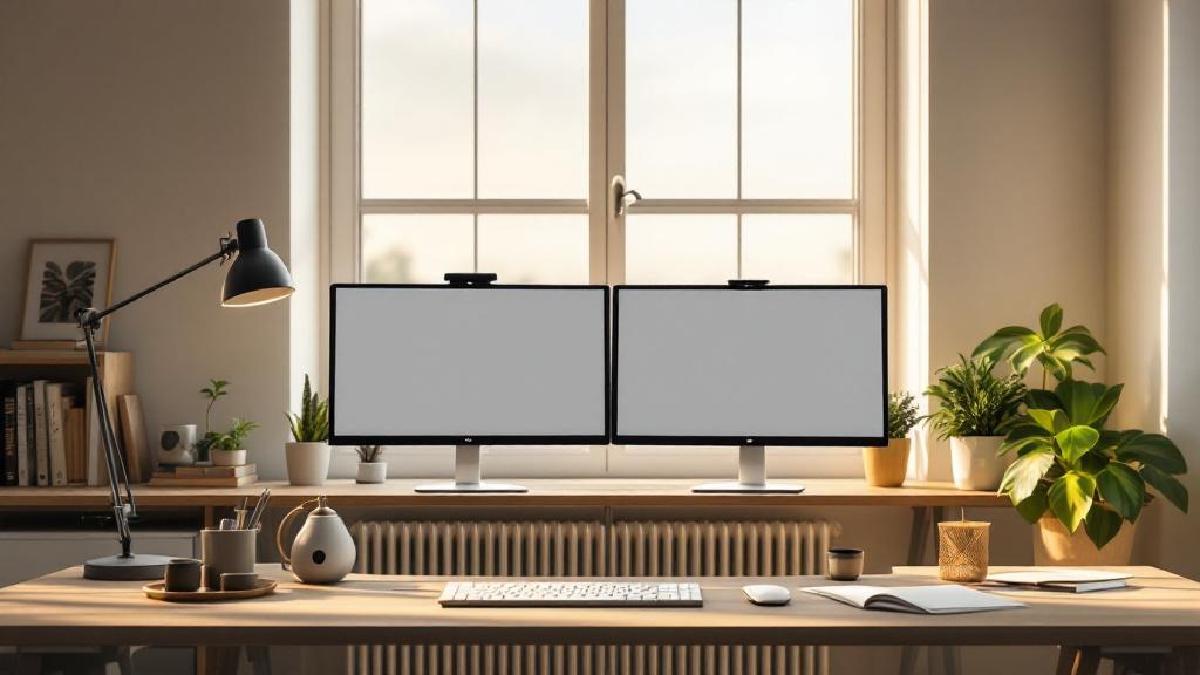
Choosing between a 27-inch and 32-inch monitor is one of those decisions that seems simple until you actually start thinking about it. Both are popular sizes for home office work, and both have passionate advocates. But the “right” size depends on your desk depth, resolution needs, eyesight, and what kind of work you do.
We’ve worked extensively with both sizes across different tasks — spreadsheets, writing, coding, video calls, and design work — to help you make a confident choice. If you’re still figuring out your overall monitor situation, our best monitors for working from home roundup covers specific model recommendations.
Quick Verdict #
Go 27-inch if your desk is under 30 inches deep, you want the sharpest text at 4K, or you plan to use dual monitors. Go 32-inch if you have a deep desk, work with large spreadsheets or creative applications, and want maximum screen real estate from a single display.
Size and Resolution: The Critical Relationship #
Monitor size means nothing without considering resolution. A 32-inch 1080p monitor looks terrible — the pixels are enormous. A 27-inch 4K monitor has text so crisp it looks printed. The size-resolution pairing determines your actual experience.
Pixel Density Comparison #
| Size + Resolution | Pixels Per Inch (PPI) | Text Clarity |
|---|---|---|
| 27" at 1080p | 82 PPI | Noticeably soft, not recommended |
| 27" at 1440p (QHD) | 109 PPI | Sharp and comfortable — sweet spot |
| 27" at 4K (2160p) | 163 PPI | Extremely crisp, may need scaling |
| 32" at 1080p | 69 PPI | Poor — avoid for office work |
| 32" at 1440p (QHD) | 93 PPI | Acceptable but not sharp |
| 32" at 4K (2160p) | 138 PPI | Sharp and comfortable — sweet spot |
The key takeaway: 27 inches pairs best with 1440p or 4K. 32 inches really needs 4K to look good for text-heavy work. A 32-inch at 1440p is usable but you’ll notice the fuzziness compared to a 27-inch at the same resolution.
This has cost implications. Quality 27-inch 1440p monitors start around $250-300. Quality 32-inch 4K monitors start around $400-500. The 32-inch path is inherently more expensive if you want sharp text.
Desk Space and Viewing Distance #
How Deep Is Your Desk? #
This is the most overlooked factor. A 32-inch monitor at arm’s length can feel overwhelming — you’ll find yourself turning your head to see the corners rather than just moving your eyes. The ideal viewing distance varies:
| Monitor Size | Recommended Viewing Distance |
|---|---|
| 27 inch | 24-32 inches (60-80 cm) |
| 32 inch | 30-40 inches (75-100 cm) |
If your desk is a standard 24 inches deep (60 cm), a 27-inch monitor is more comfortable. At 30+ inches deep, a 32-inch starts to make sense. If your desk is shallow and you want more screen space, consider a monitor arm to push the display back and reclaim desk real estate.
Physical Dimensions #
For context, here’s how much desk presence each size commands:
| 27 Inch (typical) | 32 Inch (typical) | |
|---|---|---|
| Screen Width | ~23.5 inches | ~27.9 inches |
| Screen Height | ~13.2 inches | ~15.7 inches |
| Stand Footprint | ~8-10 inches deep | ~9-11 inches deep |
That’s roughly 4.5 inches wider and 2.5 inches taller — noticeable but not dramatic in isolation. The real issue is how it fills your visual field at your specific sitting distance.
Productivity: Does Bigger Actually Mean More Productive? #
Screen Real Estate #
At the same resolution, a bigger monitor doesn’t give you more workspace — the content is just larger. A 32-inch 4K monitor and a 27-inch 4K monitor have the same 3840 × 2160 pixels. The difference is that at 32 inches, you can often use a lower scaling factor (100-125% vs 125-150%) because individual pixels are still readable at a comfortable distance.
In practice, many people run their 32-inch 4K monitors at 125% scaling, giving them an effective workspace equivalent to about 3072 × 1728 pixels. A 27-inch 4K typically runs at 150% scaling, giving roughly 2560 × 1440 effective pixels. So the 32-inch does yield more usable space — about 25-30% more content on screen.
Task-Specific Comparison #
| Task | 27" Winner? | 32" Winner? | Notes |
|---|---|---|---|
| Writing/Documents | ✅ | Focused, less head movement | |
| Spreadsheets | ✅ | More columns visible at once | |
| Coding | ✅ | IDE panels fit well; dual 27" better for multi-file | |
| Video Editing | ✅ | Larger timeline, bigger preview | |
| Photo Editing | ✅ | More detail visible without zooming | |
| Video Calls | ✅ | 27" is plenty; 32" can feel disproportionate | |
| Web Browsing | ✅ | Most sites don’t use the extra width | |
| CAD/3D Work | ✅ | More viewport space |
The Dual Monitor Question #
Two 27-inch monitors side by side span about 47 inches — massive workspace with a clear division between left and right tasks. Two 32-inch monitors span nearly 56 inches and become impractical for most desks, requiring constant head turning.
If you’re considering dual monitors (see our dual monitor setup guide), 27-inch is the much more practical choice. For single-monitor productivity, 32-inch has the edge.
Ergonomics and Eye Comfort #
Head and Neck Movement #
With a properly positioned 27-inch monitor, you can see the entire screen with minimal head movement — mostly just eye movement. A 32-inch monitor at the same distance requires more frequent head turning to see corners, which can contribute to neck strain over long work sessions.
This isn’t a dealbreaker if the monitor is far enough away, but it’s worth considering if you already have neck issues. Pair either size with a good desk lamp and a monitor light bar to reduce eye strain from lighting contrast.
Eye Fatigue #
Larger screens at close distances can increase eye fatigue simply because your eyes work harder to refocus between different parts of the screen. At appropriate viewing distances, both sizes are comfortable. The bigger risk factor is resolution — a low-PPI display (like 32" at 1440p) causes more eye strain because your eyes work to resolve blurry text.
Panel Technology #
Both sizes are available in IPS, VA, and OLED panels. A few things to know at each size:
27-inch — Widest selection of high-quality panels. Competition is fierce, so you get excellent IPS and OLED options at reasonable prices. The Dell U2723QE and LG 27UK850-W are popular 4K IPS choices for office work.
32-inch — Growing selection but often pricier for equivalent quality. VA panels are more common at this size (deeper blacks, slower response). The LG 32UN880-B (Ergo stand) and Dell U3223QE are strong 4K IPS options.
OLED is emerging at both sizes but still carries a premium. For office work, a quality IPS panel is perfectly fine and avoids OLED burn-in concerns from static UI elements.
Our Top Picks at Each Size #
Best 27-Inch for Office Work #
Dell U2723QE — 4K IPS, USB-C with 90W charging, excellent factory calibration. The go-to choice for professionals who want plug-and-play quality.
LG 27UP850-W — 4K IPS, USB-C with 96W charging, DCI-P3 95%. Slightly more affordable with similar core specs.
Best 32-Inch for Office Work #
LG 32UN880-B (Ergo) — 4K IPS with a built-in ergo clamp arm. Frees up desk space and gives excellent adjustability. Hard to beat for a 32-inch work monitor.
Dell U3223QE — 4K IPS Black technology for deeper blacks, USB-C hub, KVM switch. The premium choice.
For more options, see our full best monitors for working from home guide.
Cost Comparison #
At equivalent quality and resolution tiers:
| Category | 27-Inch | 32-Inch | Premium |
|---|---|---|---|
| Budget 1440p | $200-250 | $250-350 | ~$50-100 |
| Mid-range 4K IPS | $350-450 | $450-600 | ~$100-150 |
| Premium 4K (USB-C hub) | $450-600 | $600-800 | ~$150-200 |
| OLED | $600-900 | $800-1,200 | ~$200-300 |
The 32-inch premium is consistent: roughly $100-200 more for a comparable panel. Factor in that 32-inch almost requires 4K (adding cost), while 27-inch works beautifully at 1440p (more affordable options).
Decision Framework #
Choose 27 inches if:
- Your desk is under 30 inches deep
- You plan to use dual monitors
- Your budget favours 1440p
- You do primarily text-based work (writing, coding, email)
- You want the widest selection and best value
Choose 32 inches if:
- Your desk is 30+ inches deep
- You want a single-monitor setup with maximum space
- You work with large spreadsheets, design tools, or video editing
- You’re buying 4K anyway
- You have good distance from the screen (30+ inches)
The Uncomfortable Truth #
For most home office workers doing typical knowledge work — email, documents, video calls, web browsing — a 27-inch 1440p or 4K monitor is the best all-around choice. It’s the sweet spot of size, clarity, cost, and desk compatibility.
The 32-inch makes compelling sense for specific use cases (data-heavy work, creative professionals, single-monitor setups on deep desks), but it’s not the default recommendation many reviewers make it out to be. Bigger isn’t automatically better — the right size depends on your specific setup.
FAQ #
Is 32 inches too big for office work? #
Not inherently, but it depends on your viewing distance. At 24 inches away, a 32-inch monitor fills too much of your visual field and causes neck strain. At 30+ inches, it’s comfortable and productive. Measure your desk depth before deciding.
Do I need 4K for a 32-inch monitor? #
For office work with text, yes — strongly recommended. A 32-inch 1440p display has only 93 PPI, which makes text noticeably less sharp compared to a 27-inch at the same resolution. At 4K, the 32-inch hits 138 PPI, which is crisp and comfortable.
Can I use a 32-inch monitor on a small desk? #
You can, but it’s not ideal. A monitor arm helps by pushing the display further back and freeing up desk space. Some 32-inch monitors like the LG Ergo series come with a clamp arm built in. Also consider a monitor riser to optimise the height.
Is one 32-inch monitor better than two 27-inch monitors? #
For focused single-task work, one 32-inch can be sufficient and simpler to manage. For heavy multitasking (reference document on one screen, working document on another), dual 27-inch monitors offer more total workspace and a natural split. See our dual monitor setup guide for more detail.
What about ultrawide monitors as an alternative? #
A 34-inch ultrawide (3440 × 1440) splits the difference nicely — wider than a 27-inch, with built-in side-by-side workspace, without the height of a 32-inch. It’s a legitimate third option, though we’ll cover that comparison in a future article. For now, ultrawides tend to be pricier and less versatile for split-screen video calls.
Final Thoughts #
The 27-inch vs 32-inch decision comes down to desk depth, resolution budget, and work type. There’s no universally “better” size — just the right size for your specific situation. Measure your desk, consider your primary tasks, and let the resolution-PPI table above guide your choice.
Whatever size you land on, make sure the rest of your setup supports good ergonomics. A quality chair, proper desk lighting, and a good keyboard matter just as much as the monitor in front of you.