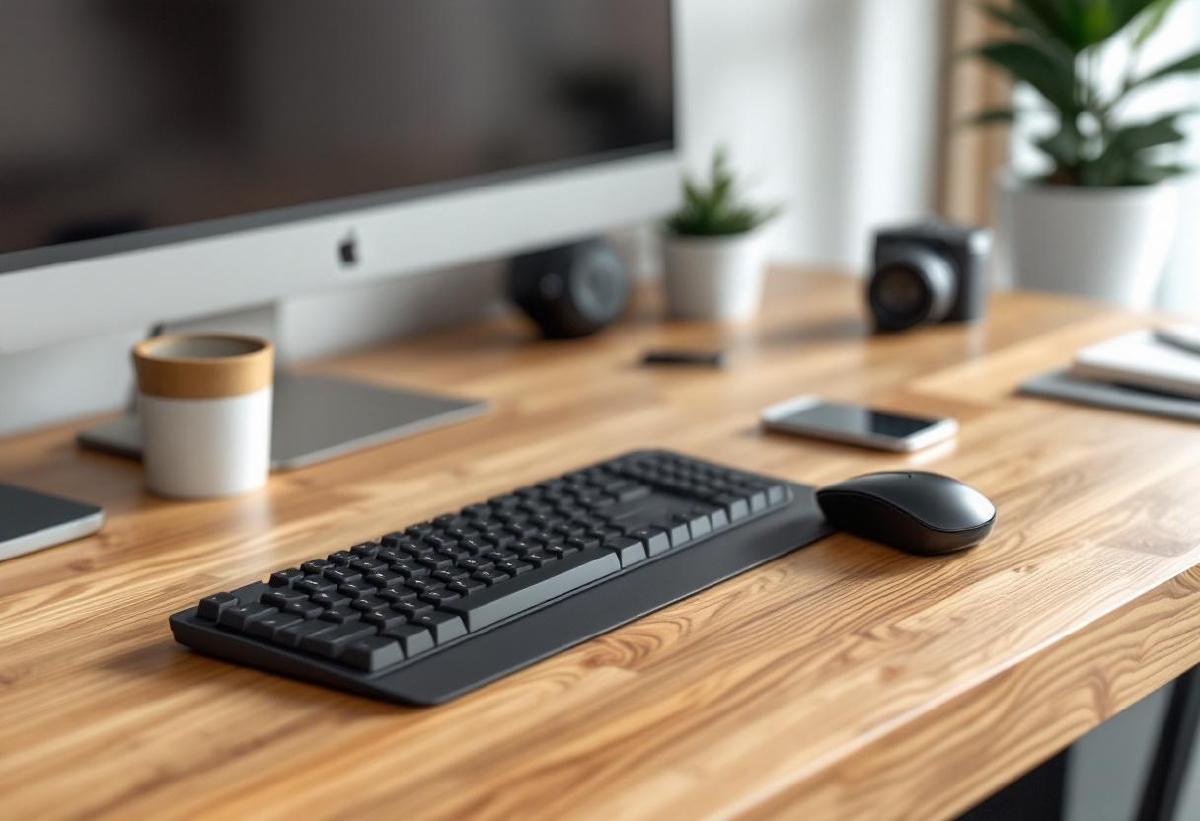
A wireless keyboard and mouse combo is the simplest desk upgrade that makes the biggest visual difference. One dongle, no cables, a clean desk — and you can push everything aside when you need the space.
The catch is that most bundled combos cut corners somewhere: mushy keys, a mediocre mouse, or a receiver that drops connection when you sneeze. We tested the current crop and found 7 combos worth recommending in 2026, whether you’re spending $30 or $200.
Our Top Picks at a Glance #
| Combo | Best For | Price (USD) | Connection | Battery Life |
|---|---|---|---|---|
| Logitech MX Keys S + MX Master 3S | Best overall (premium) | ~$200 | Bluetooth + Bolt receiver | Keys: 5mo / Mouse: 70 days |
| Logitech MK550 | Best ergonomic combo | ~$55 | Unifying receiver | Keys: 36mo / Mouse: 24mo |
| Logitech MK270 | Best budget | ~$28 | USB receiver | Keys: 24mo / Mouse: 12mo |
| Microsoft Sculpt Ergonomic | Best for wrist pain | ~$60 | USB receiver | Keys: 12mo / Mouse: 9mo |
| Logitech MK850 | Best multi-device | ~$80 | Bluetooth + Unifying | Keys: 24mo / Mouse: 24mo |
| Apple Magic Keyboard + Magic Mouse | Best for Mac users | ~$200 | Bluetooth | Both: ~1 month |
| Razer Pro Type Ultra + Pro Click | Best for typing feel | ~$180 | Bluetooth + USB receiver | Keys: 207hrs / Mouse: 400hrs |
1. Logitech MX Keys S + MX Master 3S — Best Overall (Premium) #
This isn’t technically sold as a “combo” — but it’s the combo every productivity enthusiast ends up with. The MX Keys S is the best office keyboard Logitech makes: low-profile, backlit, with a satisfying key feel that splits the difference between laptop-flat and mechanical-chunky. Smart backlighting detects your hands approaching and illuminates automatically.
The MX Master 3S is, at this point, the default recommendation for office mice. The MagSpeed scroll wheel handles both line-by-line precision and ripping through a 200-page PDF at full speed. The 8000 DPI darkfield sensor tracks on glass. Quiet clicks won’t drive your partner insane during late-night sessions.
Both support Logitech Flow — move your cursor between up to three computers and drag files between them as if they were one machine. If you have a work laptop and personal desktop, this feature alone justifies the price.
Pros:
- Best-in-class keyboard and mouse, individually
- Logitech Flow: seamless multi-computer control
- Smart backlighting on keyboard
- MagSpeed scroll wheel (electromagnetic, precise, fast)
- Both connect via Bluetooth or Bolt receiver
- USB-C rechargeable
Cons:
- ~$200 for the pair — premium price
- Two separate boxes (not a bundle deal)
- Keyboard is full-size only (no TKL option)
- Mouse too large for small hands (consider MX Anywhere 3S)
👉 Check MX Keys S on Amazon US | Amazon UK 👉 Check MX Master 3S on Amazon US | Amazon UK
2. Logitech MK550 — Best Ergonomic Combo #
The MK550 bundles a wave-shaped ergonomic keyboard with a contoured laser mouse for under $60. The keyboard’s curved key layout follows the natural motion of your fingers, and the integrated palm rest reduces wrist extension — a solid daily-driver for anyone who types 4+ hours a day.
The mouse is compact but comfortable for medium hands, with micro-precise scrolling and a thumb rest. Battery life is absurd: 36 months for the keyboard, 24 for the mouse, both on standard AAs. You’ll forget these devices even use batteries.
The Unifying receiver connects both devices on a single USB port — a genuine advantage over Bluetooth combos that can be fussy with docking stations.
Pros:
- Ergonomic wave keyboard design reduces strain
- 36-month keyboard battery life
- Single Unifying receiver for both devices
- Integrated palm rest on keyboard
- Under $60
Cons:
- Membrane keys — typists who prefer mechanical won’t love it
- Mouse is basic (no side-scroll or advanced features)
- No Bluetooth option
- Full-size only — takes up desk space
👉 Check price on Amazon US | Amazon UK
3. Logitech MK270 — Best Budget #
The MK270 is the Honda Civic of keyboard-mouse combos: nothing exciting, everything works, absurdly reliable. For ~$28, you get a full-size keyboard with a number pad, a compact ambidextrous mouse, and a single tiny receiver.
The keys are standard membrane — mushy by mechanical standards, but perfectly fine for email, spreadsheets, and general office work. The mouse is simple (left, right, scroll) but tracks accurately and fits comfortably in most hand sizes.
Over 100,000 Amazon reviews with a 4.4-star average tells the story. This combo just works. If you need wireless peripherals and don’t want to overthink it, buy the MK270 and spend the savings on a better monitor arm or desk lamp.
Pros:
- Under $30 — best value in the category
- Reliable wireless with no dropouts
- 24-month keyboard battery life
- Full-size layout with number pad
- Tiny USB receiver
Cons:
- Keys feel mushy / cheap
- Mouse is very basic (no extra buttons)
- No backlighting
- No Bluetooth — receiver only
- Not rechargeable (AA batteries)
👉 Check price on Amazon US | Amazon UK
4. Microsoft Sculpt Ergonomic — Best for Wrist Pain #
If you’re dealing with wrist pain, carpal tunnel symptoms, or RSI, the Microsoft Sculpt Ergonomic is the most aggressive ergonomic combo available without going full split-keyboard. The domed keyboard layout forces a natural wrist position, and the separate number pad lets you keep the mouse closer to the keyboard centre — reducing shoulder reach.
The mouse has a thumb scoop and a rounded shape that supports a semi-vertical grip. It’s not a full vertical mouse, but it’s a significant improvement over flat mice for wrist health.
The split spacebar and reversed-tilt design (front higher than back) are polarising — some people adapt in a day, others never do. If you can, try one in a store before committing. Those who adapt swear by it.
Pros:
- Purpose-built for ergonomics and wrist health
- Domed split keyboard with natural curve
- Separate number pad — mouse stays centred
- Cushioned palm rest
- Comfortable sculpted mouse
Cons:
- Steep learning curve for the layout
- Non-standard key layout frustrates some typists
- Proprietary USB receiver (not Unifying)
- AES encryption on receiver — can’t share with other devices
- Not rechargeable
👉 Check price on Amazon US | Amazon UK
5. Logitech MK850 — Best Multi-Device #
The MK850 is for the multi-device juggler who switches between a work laptop, personal desktop, and maybe a tablet throughout the day. Both the keyboard and mouse support Easy-Switch — tap a button to jump between three paired devices instantly.
The keyboard uses Logitech’s PerfectStroke system for a comfortable, quiet typing experience, and the concave key caps keep your fingers centred. The full-size layout includes a cushioned palm rest and a phone/tablet cradle above the function row — genuinely useful for referencing your phone while typing.
The mouse is a step up from the MK550’s mouse, with a precision scroll wheel and thumb buttons. Connect via Bluetooth or the included Unifying receiver — your choice per device.
Pros:
- Easy-Switch: pair up to 3 devices on both keyboard and mouse
- Bluetooth + Unifying receiver (dual connectivity)
- Integrated device cradle on keyboard
- Cushioned palm rest
- Quiet, comfortable keys
Cons:
- ~$80 — more than basic combos
- Mouse is good but not MX Master-level
- Full-size keyboard is large
- Occasional Bluetooth pairing hiccups on first setup
👉 Check price on Amazon US | Amazon UK
6. Apple Magic Keyboard + Magic Mouse — Best for Mac Users #
If you’re all-in on the Apple ecosystem, the Magic Keyboard and Magic Mouse offer the tightest macOS integration available. Touch ID on the keyboard for instant unlocking. Native gesture support on the mouse’s multi-touch surface. Zero setup — they pair the moment you plug in the Lightning cable once.
The typing experience is flat and low-travel — you either love it (like a MacBook keyboard, but better) or find it fatiguing for long sessions. The Magic Mouse remains controversial: the multi-touch surface is brilliant for gestures, but the low profile causes wrist strain for many users over long periods. Consider adding an ergonomic mouse pad if you go this route.
The elephant in the room: both charge via Lightning (yes, in 2026). This matters if your desk is otherwise all USB-C. A full charge lasts about a month on each.
Pros:
- Seamless macOS/iPadOS integration
- Touch ID on keyboard
- Multi-touch gesture surface on mouse
- Aluminium build — premium feel
- Instant pairing with Apple devices
Cons:
- ~$200 for both — Apple tax
- Lightning charging (still, in 2026)
- Magic Mouse is flat — causes wrist strain
- No Windows support for Touch ID
- Charge port on bottom of mouse (can’t use while charging)
👉 Check Magic Keyboard on Amazon US | Amazon UK 👉 Check Magic Mouse on Amazon US | Amazon UK
7. Razer Pro Type Ultra + Pro Click — Best for Typing Feel #
If you want mechanical key feel in an office-appropriate package, the Razer Pro Type Ultra delivers. The silent yellow mechanical switches provide the tactile bump of a mechanical board without the click-clack that gets you dirty looks on Zoom calls. White backlighting, full aluminium frame, and a leatherette wrist rest round out a seriously premium keyboard.
The Pro Click mouse is Razer’s answer to the MX Master 3S — 8 programmable buttons, 16,000 DPI optical sensor, and dual-mode connectivity. It’s slightly more gaming-oriented in sensor specs, but the white colourway and quiet clicks keep it professional.
Both connect via Bluetooth or Razer’s HyperSpeed dongle (2.4GHz, low-latency). If you care about typing feel and don’t want to sacrifice wireless convenience, this is the combo.
Pros:
- Mechanical switches (silent yellow) — best typing feel in a combo
- Aluminium keyboard frame
- 16,000 DPI on mouse — overkill, but smooth
- Dual wireless: Bluetooth + HyperSpeed
- Razer Synapse software for customisation
Cons:
- ~$180 for both — premium tier
- Keyboard is heavy (800g+) — not portable
- White colourway shows dirt over time
- Razer Synapse is bloated software
- Mouse shape may not suit everyone
👉 Check Pro Type Ultra on Amazon US | Amazon UK 👉 Check Pro Click on Amazon US | Amazon UK
How to Choose the Right Combo #
Bundle vs Buy Separate? #
True bundles (MK270, MK550, MK850) share a single receiver and often cost less than buying each piece individually. Premium “combos” like the MX Keys + MX Master or Razer set are separate purchases paired together — you pay more but get best-in-class for each device. If your budget is under $100, get a bundle. Over $100, consider pairing individually.
Connection Type #
USB receiver is plug-and-play reliable — best if your computer has USB-A ports and you don’t need multi-device switching. Bluetooth is essential for tablets, laptops with limited ports, and multi-device setups. The best combos offer both. If you’re using a USB-C docking station, Bluetooth avoids burning a port.
Battery: Rechargeable vs Replaceable #
Rechargeable (USB-C) means never buying batteries but periodic charging. Replaceable (AA/AAA) means longer total battery life (12–36 months) but you need spares. Neither is objectively better — it’s a preference.
Ergonomics #
If you type more than 4 hours daily, an ergonomic layout (MK550, Sculpt) reduces strain measurably. For serious wrist issues, you may need a split ergonomic keyboard and a vertical mouse instead of a combo.
Frequently Asked Questions #
Can I use a keyboard-mouse combo with two computers? #
Only if the combo supports multi-device switching (like the MK850, MX Keys S, or Razer Pro Type Ultra). Basic combos with a single USB receiver are locked to one computer. For multi-computer workflows, also consider Logitech Flow or a KVM switch.
Do wireless keyboard combos have input lag? #
Modern 2.4GHz receivers have 1–4ms latency — imperceptible for office work. Bluetooth is slightly higher (5–15ms) but still fine for typing and clicking. You won’t notice lag unless you’re competitive gaming, which isn’t what these combos are designed for.
How far away can I sit from the receiver? #
Most combos work reliably up to 10 metres (33 feet). Logitech’s Bolt and Unifying receivers are particularly stable. Bluetooth range is similar but more susceptible to interference from other wireless devices. For a standard desk setup, range is never an issue.
Should I buy the combo or get a better keyboard and a separate mouse? #
If typing quality matters most to you (writer, programmer, data entry), buy a standalone keyboard and pair it with a separate mouse. If you value convenience, clean aesthetics, and a single receiver, combos offer better value and a matched design language.
Are wireless combos good for gaming? #
Office wireless combos are designed for productivity, not competitive gaming. The mice typically have lower polling rates and DPI than gaming peripherals. For casual gaming (Civilization, Stardew Valley), they’re fine. For FPS games, get a dedicated gaming setup.
The Bottom Line #
For most home office workers, the Logitech MK550 at ~$55 offers the best balance of ergonomic design, reliability, and value. If you want the absolute best and don’t mind paying for it, the MX Keys S + MX Master 3S pairing is the gold standard for productivity peripherals. And if you just need wireless basics that work, the MK270 at $28 is borderline free for what you get.
Pair your new combo with a desk mat for a smooth mouse surface, and consider a wrist rest if your keyboard doesn’t include one.