
Your desk setup is only as good as the accessories on it. A great monitor on a great standing desk still feels chaotic if cables snake everywhere, your laptop teeters on a stack of books, and every flat surface is buried under pens, chargers, and sticky notes. The right desk accessories turn that cluttered surface into a focused, productive workspace — and you don’t need to spend a fortune to get there.
After testing dozens of options across monitor risers, desk mats, docking stations, light bars, organisers, hubs, and laptop stands, here are the 7 best desk accessories for your home office in 2026. Each one solves a specific problem that most home offices share, and together they create a workspace that’s clean, functional, and genuinely pleasant to sit at for eight hours.
Quick Comparison Table #
| Accessory | Category | Price (USD/GBP) | Best For |
|---|---|---|---|
| Grovemade Desk Shelf | Monitor riser | $200 / £160 | Premium build, buy-it-for-life |
| Orbitkey Desk Mat | Desk mat | $65 / £52 | Style + hidden document storage |
| Anker 675 USB-C Docking Station | Docking station/riser | $250 / £200 | All-in-one hub + riser |
| BenQ ScreenBar Halo | Monitor light bar | $179 / £143 | Zero-glare desk lighting |
| Ugmonk Gather | Desk organiser | $100 / £80 | Modular minimalist organisation |
| CalDigit Element Hub | Thunderbolt hub | $150 / £120 | Compact high-speed port expansion |
| Twelve South BookArc | Laptop stand | $50 / £40 | Clamshell laptop storage |
1. Grovemade Desk Shelf — Best Monitor Riser #
Price: $200 / £160 Check price on Amazon US → Check price on Amazon UK →
If you’re tired of stacking textbooks under your monitor, the Grovemade Desk Shelf is the upgrade you didn’t know you needed. Made from solid hardwood (walnut or maple) with a powder-coated steel frame, it elevates your monitor to a more ergonomic eye level while creating genuinely useful storage space underneath — enough for a keyboard, notebook, or small accessories.
The shelf accommodates monitors up to 32 inches and includes a built-in cable channel along the back edge that routes power and display cables out of sight. The construction is exceptional — this is a buy-it-for-life product that feels more like furniture than a desk accessory. The wood develops a richer patina over time, and the steel frame is rock-solid with no flex even under heavy monitors.
At $200, it’s significantly more expensive than a basic monitor riser from Amazon. But cheap risers are typically MDF or plastic, wobble under weight, and look like office supplies rather than desk furniture. The Grovemade looks and feels like it belongs on a premium desk, and its durability means you’ll be using it long after you’ve replaced everything else. If you’d prefer an adjustable solution, consider a monitor arm instead — though many users pair both, using the shelf for storage and the arm for screen positioning.
Pros #
- Stunning hardwood and steel construction
- Creates useful storage space underneath
- Integrated cable management channel
- Raises monitor to ergonomic height
- Buy-it-for-life durability
- Available in walnut and maple finishes
Cons #
- Premium price point at $200
- Heavy — not easy to reposition once placed
- Fixed height (no adjustment)
- Only available from Grovemade directly or select retailers
Best for: Anyone who values craftsmanship and wants a monitor riser that doubles as a beautiful desk furniture piece. Pairs exceptionally with a wooden standing desk.
2. Orbitkey Desk Mat — Best Desk Mat #
Price: $65 / £52 Check price on Amazon US → Check price on Amazon UK →
A desk mat is one of those accessories that seems unnecessary until you use one — then you wonder how you worked without it. The Orbitkey Desk Mat is more than just surface protection: it’s a vegan leather workspace organiser with a built-in document hideaway flap, magnetic cable holder, and toolbar section for pens, sticky notes, and small tools.
The document hideaway is the standout feature. Lift the top section and you’ll find a full-width pocket that holds A4 papers, notes, or a tablet flat against the desk surface — completely hidden. For people who reference printed documents during calls or keep daily to-do lists, this is brilliant. The magnetic cable holder snaps onto the mat’s edge and keeps your charging cable accessible without sliding off the desk.
The vegan leather surface is smooth enough for a mouse but textured enough to prevent your keyboard from sliding. It wipes clean with a damp cloth, resists coffee stains (a genuine home office hazard), and comes in multiple sizes and colours to match any desk aesthetic. After six months of use, the edges may curl slightly — pressing them flat with a heavy book overnight resolves this.
For more desk mat options at different price points, see our dedicated best desk mats in 2026 guide.
Pros #
- Document hideaway is genuinely useful for papers and notes
- Magnetic cable holder keeps charging cables accessible
- Vegan leather wipes clean and resists stains
- Multiple sizes and colour options
- Toolbar section organises pens and small items
- Gives the entire desk a polished, intentional look
Cons #
- Edges may curl slightly over time
- Not as large as some full-desk mats
- Vegan leather may not appeal to everyone’s touch preference
- Magnetic cable holder only holds one cable
Best for: Anyone who wants their desk to look intentional and organised. The document hideaway alone justifies the price for paper-reference workflows.
3. Anker 675 USB-C Docking Station — Best All-in-One Hub #
Price: $250 / £200 Check price on Amazon US → Check price on Amazon UK →
The Anker 675 is one of the cleverest desk accessories we’ve tested: it’s simultaneously a monitor riser, a 12-in-1 USB-C docking station, and a wireless charger. One product replaces three, which is exactly the kind of desk-space efficiency a home office needs.
The riser surface holds monitors up to 32 inches and raises them about 3 inches — enough to create a more comfortable viewing angle for most people. Underneath, you get 12 ports: dual 4K HDMI output, three USB-A 10Gbps ports, two USB-C ports (one for upstream laptop connection with 100W passthrough charging), Ethernet, SD and microSD card readers, and a 3.5mm audio jack. The top surface includes a built-in Qi wireless charging pad for your phone.
For anyone running a laptop-centric setup — a MacBook or Windows ultrabook connected to an external monitor and peripherals — the Anker 675 means one cable connects your laptop to everything. Sit down, plug in one USB-C cable, and you’re connected to your display, keyboard, mouse, wired network, and charging. Unplug that one cable and you’re mobile.
The 100W passthrough charging handles most laptops, though some high-performance gaming laptops or MacBook Pro 16-inch models may charge slowly under heavy load. For standard office use with a MacBook Air or similar, it’s more than sufficient.
For dedicated docking stations without the riser functionality, see our best USB-C docking station roundup.
Pros #
- Three accessories in one: riser, dock, and wireless charger
- 12 ports including dual 4K HDMI
- One-cable connection for laptop users
- Built-in Qi wireless charging pad
- Clean, minimal aesthetic in white or grey
- Ethernet port for reliable wired networking
Cons #
- $250 is significant for a desk accessory
- 100W passthrough may not satisfy power-hungry laptops
- Fixed riser height — no adjustment
- Large footprint compared to a standalone dock
- Requires USB-C laptop for full functionality
Best for: Laptop users who want the cleanest possible desk setup with minimal cables. The single-cable workflow is transformative for daily productivity.
4. BenQ ScreenBar Halo — Best Monitor Light Bar #
Price: $179 / £143 Check price on Amazon US → Check price on Amazon UK →
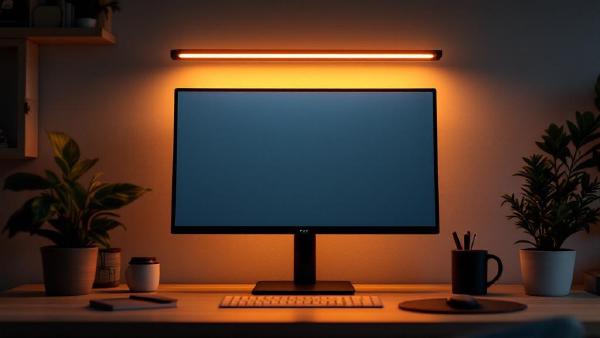
Desk lighting is one of the most overlooked aspects of a home office. Working in a room lit only by your monitor strains your eyes, causes headaches, and tanks your energy by mid-afternoon. A monitor light bar sits on top of your screen and illuminates your desk surface with asymmetric optics — light falls on your desk and keyboard, not on your screen. Zero glare, zero reflections, zero wasted desk space.
The BenQ ScreenBar Halo is the best implementation of this concept. Its asymmetric optical design uses a precisely angled lens to direct light downward and forward, and the “Halo” feature adds a backlight that illuminates the wall behind your monitor. This reduces the contrast between your bright screen and dark surroundings — one of the primary causes of eye strain during evening work sessions.
The wireless controller puck sits on your desk and lets you adjust brightness and colour temperature (2700K warm to 6500K cool) with a twist. An ambient sensor can auto-adjust brightness based on room lighting. The bar clamps onto monitors from 1cm to 3cm thick with a counterweighted clip — no adhesive, no tools, no marks.
If you already have a desk lamp and wonder whether a light bar adds value — yes. A desk lamp creates shadows and uneven lighting; a light bar provides uniform illumination across your entire desk surface. Ideally, use both: the light bar for task lighting, a desk lamp for ambient warmth. But if you pick one, the ScreenBar is more practical for screen-focused work.
Pros #
- Zero screen glare from asymmetric optics
- Rear backlight reduces eye strain from screen-wall contrast
- Wireless dial controller for brightness and colour temperature
- Ambient light sensor for automatic adjustment
- Takes zero desk space — mounts on monitor
- Works with monitors 1–3cm thick
Cons #
- $179 is premium for a light bar
- Doesn’t fit all monitor thicknesses (check yours)
- Backlight colour can’t be set independently from front light
- Wireless controller requires batteries (AAA)
Best for: Anyone who works past sunset or in a room without great natural light. The eye strain reduction is immediate and noticeable from day one.
5. Ugmonk Gather — Best Desk Organiser #
Price: $100 / £80 Check price on Amazon US → Check price on Amazon UK →
Desk clutter is productivity’s quiet enemy. Every pen, sticky note, cable, and paper clip that doesn’t have a designated home creates visual noise that fragments your focus. The Ugmonk Gather system solves this with a modular magnetic organiser made from walnut and leather — a set of trays, pen holders, and card slots that connect magnetically so you build exactly the configuration your desk needs.
The magnetic connection is the key design insight. Rather than a fixed organiser that may not match your items, Gather lets you snap together different modules: a pen tray for two or three pens, a catch-all tray for paper clips and USB sticks, a phone stand for propping up your device, and a card holder for business cards or sticky notes. Rearrange them any time your needs change.
The walnut and leather materials look genuinely premium — this isn’t the injection-moulded plastic organiser from Staples. It sits on your desk like a piece of crafted furniture, which motivates you to actually keep things organised rather than letting entropy win. The magnets are strong enough to hold the modules together firmly but weak enough to separate with one hand.
The downside is cost. Individual pieces range from $20–40, and building a full set easily exceeds $100. The magnets could also be slightly stronger — if you nudge the assembly hard, pieces can shift. But for keeping a small set of daily essentials organised without visual clutter, nothing else looks or works this well. See our full desk organiser roundup for more options.
Pros #
- Magnetic modular system — build your exact configuration
- Beautiful walnut and leather materials
- Keeps small items organised without visual clutter
- Reconfigurable as your needs change
- Premium look that motivates tidiness
Cons #
- Individual pieces add up in cost quickly
- Magnets could be slightly stronger
- Limited module selection compared to cheaper systems
- Walnut requires occasional care to maintain appearance
Best for: Minimalists who want their desk items organised beautifully. The modular system adapts to your workflow rather than forcing you into a fixed layout.
6. CalDigit Element Hub — Best Compact Thunderbolt Hub #
Price: $150 / £120 Check price on Amazon US → Check price on Amazon UK →
If you need Thunderbolt 4 speed without the bulk of a full docking station, the CalDigit Element Hub is the sweet spot. Roughly the size of a hockey puck, it provides three USB-C/Thunderbolt 4 downstream ports and four USB-A 10Gbps ports — seven total ports in a package that practically disappears on your desk.
The Thunderbolt 4 ports support 40Gbps data transfer, 8K display output, and daisy-chaining — meaning you can connect a Thunderbolt display, an external SSD, and another hub all through the Element. For MacBook users especially, this is the cleanest way to expand your limited ports. A single Thunderbolt cable from your laptop to the Element Hub opens up seven ports without a cable octopus.
Unlike the Anker 675, the Element Hub doesn’t include a display output port — you’ll need a Thunderbolt-to-HDMI adapter or a Thunderbolt display. It also doesn’t charge your laptop. This keeps the hub compact and affordable, but it means you’ll still need a separate charging cable and display adapter if your monitor doesn’t support Thunderbolt input.
For users who need display output and charging built in, the Anker 675 or our USB-C docking station picks are better choices. For pure port expansion in the smallest possible form factor, the Element Hub is unbeatable.
Pros #
- Tiny form factor — practically invisible on a desk
- Three Thunderbolt 4 / USB4 downstream ports
- Four USB-A 10Gbps ports
- Supports 8K display and daisy-chaining
- 40Gbps data transfer speed
- Works with both Mac and Windows
Cons #
- No built-in display output (adapter needed)
- No laptop charging capability
- No card reader
- Thunderbolt cable not included
- Premium price for a hub without display/power features
Best for: MacBook and Thunderbolt laptop users who need maximum ports in minimum space, and already have a separate charging solution and display connection.
7. Twelve South BookArc — Best Laptop Stand #
Price: $50 / £40 Check price on Amazon US → Check price on Amazon UK →
If you run a clamshell setup — laptop closed, connected to an external monitor, keyboard, and mouse — your laptop is just sitting on your desk taking up space. The Twelve South BookArc holds it vertically, reclaiming that entire footprint for other things.
The aluminium construction matches Apple’s design language perfectly (Twelve South is a Mac-accessory specialist), and silicone inserts accommodate different laptop thicknesses. The vertical orientation actually improves thermal management for some laptops by allowing heat to rise naturally rather than being trapped under a flat bottom. The small footprint — roughly the size of a thick book standing upright — means it fits anywhere: beside your monitor, on a shelf, or at the edge of your desk.
The BookArc is only useful in clamshell mode. If you use your laptop screen as a second display, you’ll want a laptop stand that holds it open at eye level instead. And while Twelve South markets this for MacBooks, it works with any laptop that fits the included silicone inserts — most 13-16 inch Windows ultrabooks fit fine.
Pros #
- Frees up significant desk space
- Aluminium build matches Apple aesthetics
- Silicone inserts accommodate different laptop thicknesses
- Improves thermal performance in vertical orientation
- Tiny footprint — fits anywhere on the desk
- Well-built and stable
Cons #
- Only useful in clamshell mode — not for dual-screen setups
- Requires correct silicone insert for your laptop model
- Doesn’t work with exceptionally thick gaming laptops
- No built-in cable management
Best for: Clamshell laptop users who want to reclaim desk space and keep their setup clean. Essential for single-monitor workflows with a docked laptop.
How We Chose These Accessories #
We evaluated desk accessories across five criteria, weighted toward daily practicality:
- Build quality (30%) — Will it last years, not months? We prioritised metal, wood, and premium materials over plastic.
- Functionality (25%) — Does it solve a real, common desk problem? Multi-function products scored higher.
- Desk footprint (20%) — Does it save space or consume it? Accessories that reduce net desk clutter scored higher than those that add to it.
- Value (15%) — Is the price justified by the quality and utility? We considered cost-per-year of expected lifespan.
- Aesthetics (10%) — Does it make your setup look better? A clean desk feels better to work at.
We prioritised products that serve multiple functions (like the Anker 675 combining riser, dock, and charger) and those with genuinely premium build quality that justifies the investment over cheap alternatives.
FAQ #
What desk accessories do I actually need? #
Start with the three that solve the most universal problems: a desk mat for surface protection and a polished look, a monitor riser or arm for ergonomic screen height, and cable management to eliminate visual clutter. A desk lamp or light bar is next if your room lighting is poor. Everything else is optimisation — nice to have, but not essential on day one. See our home office setup guide for beginners for the full prioritised list.
Are expensive desk accessories worth it? #
For items you use every day and that last years, yes. A $65 desk mat you use for five years costs about 4 cents per day. A $15 mat that peels in six months costs more per use and looks worse the entire time. Apply the same logic to monitor risers, organisers, and hubs — the cost-per-year of quality products is almost always lower than cycling through cheap replacements.
How do I keep my desk organised? #
Three rules: (1) Everything has a designated home — a tray, drawer, or mount. (2) At the end of each day, take 60 seconds to return items to their homes. (3) If something has been on your desk for a week and you haven’t used it, it doesn’t belong there. A modular organiser like the Ugmonk Gather makes rule #1 easy. Cable management solutions handle the wires.
Do I need a monitor light bar if I have a desk lamp? #
They serve different purposes, and ideally you’d have both. A light bar provides uniform task lighting across your desk surface with zero screen glare — optimised for screen work. A desk lamp provides flexible ambient or spot lighting for non-screen tasks like reading, writing, or video calls. If you only buy one, the light bar is more practical for computer-focused work. Our monitor light bar guide covers more options.
What’s the best desk accessory for under $50? #
The Twelve South BookArc (~$50) if you use a laptop in clamshell mode. Otherwise, a quality cable management kit ($15–25) or a good wireless charger ($30–40) will transform your daily workflow for minimal cost.
How do I reduce cable clutter on my desk? #
Three approaches: (1) A docking station like the Anker 675 reduces cable count by consolidating ports into one upstream cable. (2) Cable management trays or raceways route remaining cables under the desk and out of sight. (3) Magnetic cable clips hold charging cables at the desk edge so they don’t fall behind the desk when disconnected. See our dedicated cable management guide for specific product recommendations.
Final Thoughts #
The best desk accessories are the ones you stop noticing — they just make everything work better. Start with whatever solves your biggest pain point (clutter? bad lighting? cable chaos?) and build from there. A single well-chosen accessory can transform how your workspace feels, and three or four of them together create a desk you genuinely enjoy sitting at.
For the full home office setup, don’t miss our guides to standing desks, ergonomic chairs, ergonomic keyboards, and desk lamps.
Also worth reading: coffee maker.
Also worth reading: desk calendar.
Also worth reading: drawer organizer.
Also worth reading: bookshelf organizer.
Also worth reading: document holder.
Also worth reading: laptop cooling pad.
Also worth reading: phone holder.
Also worth reading: printer.
Also worth reading: surge protector.
Also worth reading: whiteboard.